Interaktiv Tap v1.3 — now on Windows, with Interaktiv Bridge, FX you play by touch and loop rolls
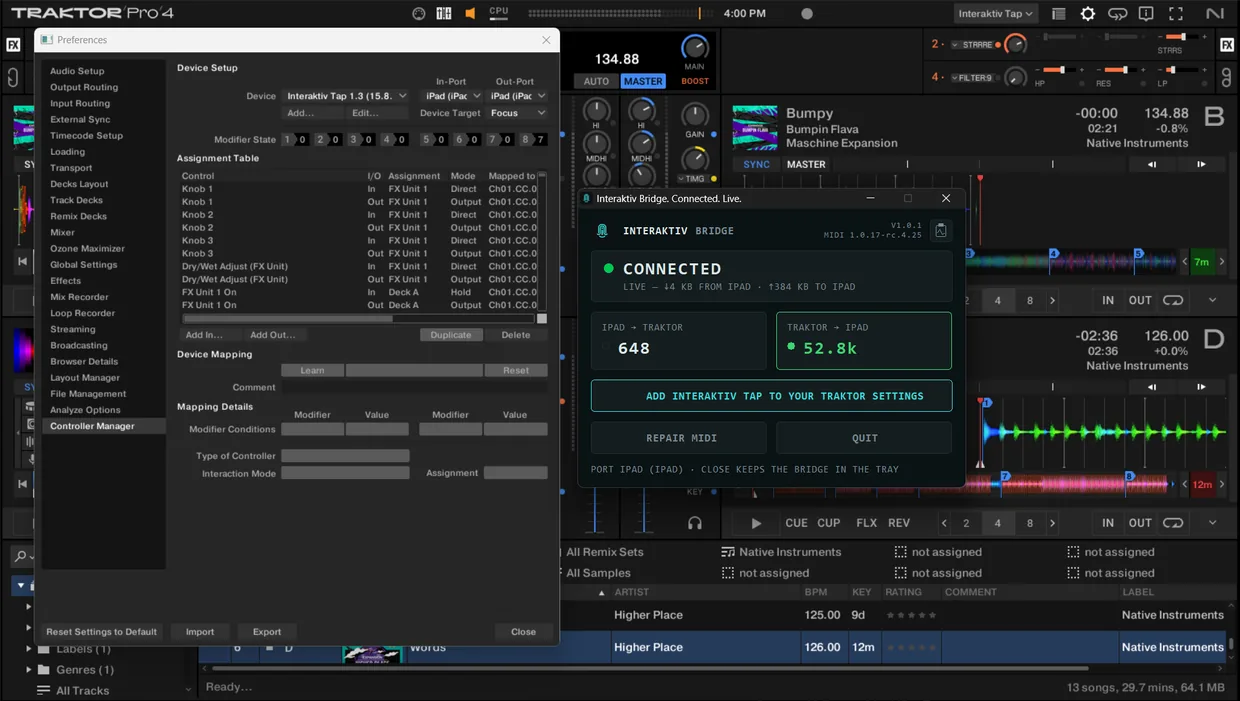
Interaktiv Bridge over Traktor on Windows: connected, with both of Traktor’s ports set to iPad (iPad).
Interaktiv Tap v1.3 is live, and it plays Traktor on Windows. The free Interaktiv Bridge from the Microsoft Store carries MIDI between the iPad and Traktor over the same USB cable — the connection a Mac has built in and Windows never had. And the FX units became instruments you play by touch.
One thing to do first: update your Traktor settings. The app asks once Traktor answers — share from Settings, merge, and import in Traktor, once on every computer you use. On Windows the bridge turns green only with the new settings.
Interaktiv Bridge, for Windows.
From the Microsoft Store. Free, installs like any Store app and starts with Windows in the tray. It needs Windows 11 24H2 or newer on an Intel or AMD PC, Traktor Pro 3 or 4, and Apple’s Apple Devices app, opened once.
Green means Traktor answered. The bridge checks once a second, and the window turns amber within seconds when Traktor stops answering.
The window says what is in the way. The headline names it — WAITING FOR IPAD, APPLE DEVICES NOT RUNNING, WINDOWS MIDI NEEDS REPAIR — and the line at the bottom gives the fix, with the button that does it.
Windows MIDI Services installs from the window. One button — INSTALL MIDI SERVICES — and one Windows prompt. REPAIR MIDI is there for the day Windows hands MIDI back to its old driver.
The port is there before Traktor is. After the bridge’s first run, iPad (iPad) exists from the moment Windows starts its MIDI service, so the order you open things in stops mattering.
Your Traktor settings, over the cable.ADD INTERAKTIV TAP TO YOUR TRAKTOR SETTINGS opens the iPad’s settings page in your PC’s browser. No Wi‑Fi, no address to type.
Wakes with the PC. After sleep the bridge reconnects by itself, with Traktor untouched.
Nothing phones home. No account and no telemetry. The one download is Microsoft’s MIDI runtime, once; playing needs no network.
Interaktiv Tap v1.3.
Traktor Pro 3 and the iPad mini. Pro 3 works like Pro 4 — all four deck types, the full effect list, the same setup. Any iPad on iPadOS 18 or later plays the full surface, the mini included.
FX units you play by touch. Touch the pad and the effect switches on; lift and it switches off. HOLD keeps it on hands-free. Hold FX-UNIT: PREV and NEXT step through effects, SAVE and LOAD keep an effect’s settings, and your deck routing stays; the A–D buttons now only choose which decks the unit plays on. A two-finger hold opens CHOOSE EFFECTS: one finger scrolls, two fingers reorder.
Gesture loops, on the beat. While a loop plays, HOLD reads REV — tap it and the loop runs backward from the next beat. A playing loop stops on the next beat, halving or doubling carries on from the same point, and a collapsed FX unit keeps HOLD/REV, its loop slots and SIZE under your fingers.
One-knob effects take the value where you touch, and Filter pads follow Traktor’s DJM and BRJ buttons.
Loop rolls. Hold LOOP on a playing deck and the hot cues become eight loop rolls, 1/32 to 4 beats: touch to roll, slide to change the size — down doubles, right quadruples — and lift, and the track carries on where it would have been. Swipe down on LOOP to keep the rolls on screen with no finger on it, up to bring the hot cues back — they come back by themselves when a loop starts or the deck stops. On a Remix deck the rolls take the launcher’s top two rows, one row of cells stays below them and R1 to R4 under it choose which row. A loop shorter than a beat set from LOOP is a roll too, held for you until the next two-finger tap. Traktor’s Flux Mode does the catching up; a roll switches it on for the hold if it was off, and so does REV — held together they keep it on until both let go. Switching it off under a roll or REV ends it. A loop set from LOOP now stays set with Flux Mode on. A held roll freezes its deck: move KEY, VOL or the filter and they come back when the roll ends. While LOOP is held, the deck name becomes ← and →: tap one to jump back or forward by the size LOOP shows, or hold it to keep moving — with Flux Mode on and a loop running, once per loop, in time.
Hold PLAY with one finger for CUE and CUP while the deck is stopped, REV and FLX while it plays. PLAY shows Traktor’s flux arrow while Flux Mode is on.
Decks. Swipe a deck’s name button toward the screen edge to go back to Home. Delete a hot cue by holding the deck name, then the red DEL. On an expanded deck the kills are one hold away. A phase bar shows a playing deck drifting from the tempo master, and the active Mixer FX slot reads FLTR.
KEY. Tap to step a semitone, two-finger tap to reset — double-tap no longer resets it.
Double-tap SYNC to snap a deck’s beat phase onto the master’s — Traktor’s Phase Sync, when you want it.
FREEZE now also brings back each FX unit’s effect, HOLD and a reversed gesture loop, sends only what changed, and leaves the Loop Recorder alone.
Traktor holds the state. A button lights when Traktor confirms it, so the iPad always shows what Traktor is doing — with no computer connected, taps light nothing. Beside the BPM the header names what is in the way: NOT CONNECTED, NO TRAKTOR or NOT SYNCED. Coming back to the app, it catches up with Traktor by itself.
Hints in the header. Rest a finger on a control and the header names its hidden gestures. Settings → Show hints turns them off.
Master tempo. Touching the tempo strip puts Traktor’s clock in charge of the tempo, so a bend always lands.
Loop Recorder. Hold SIZE for two buttons with the next smaller and larger length.
Steadier on stage. The screen stays awake while the app is open, opening it no longer stops music in other apps, all four FX units stay smooth played at once, and a fader or pad lets go when the control under your finger changes.
A manual organised by the areas of the app, with images and a chapter for Windows.
What the bridge’s window can say, what it needs and its honest limits are all at interaktivaudio.com/bridge.

 Scan with your iPad
See what Interaktiv Tap does →
Scan with your iPad
See what Interaktiv Tap does →