Support & Manual
This page is the full manual for Interaktiv Tap — setup, every feature, and how to fix the common snags. It is updated whenever the app is, so where anything you have read elsewhere disagrees, the manual at interaktivaudio.com/support is the current one. New here? See what Interaktiv Tap does, or what it plays in Traktor.
#Setup & connection
#What Interaktiv Tap is
Interaktiv Tap is a multi-touch instrument for iPad: you play your set with gestures, not knobs and jog wheels. It plays Traktor Pro 3 or 4 over USB MIDI — full decks, the mixer, EQ and kills, FX, loops, and recorded gestures, in sync both ways. It’s purpose-built and ready to play, not a blank MIDI template you set up yourself. It’s free to download and free to play in 15-minute demo sessions, with an optional 7-day free trial of everything and a one-time unlock — no subscription.
#Requirements
- iPad
- Any iPad running iPadOS 18 or later — the mini included.
- Traktor Pro 3 or 4 on a Mac — or on an Intel or AMD PC with Windows 11 and the free Interaktiv Bridge app from the Microsoft Store
- One cable, Lightning or USB-C, straight into the computer — no camera adapter
The iPad connects to the computer over USB, and there is no wireless mode. On a Mac this is built in. On Windows it needs one small free app from us — Interaktiv Bridge, free on the Microsoft Store, see interaktivaudio.com/bridge — because Apple built that USB MIDI connection only into macOS. The bridge needs an Intel or AMD PC with Windows 11 25H2 or newer. It uses a preview of Microsoft’s Windows MIDI Services API, included with the app, so there is no MIDI software to install; when Microsoft builds that API into Windows, an update moves the bridge to Windows’ own copy. Installing the bridge and Apple’s free Apple Devices app needs the internet once; playing needs no network of any kind.
#Get started
The app walks you through this on first launch — a setup wizard that ticks each step off by itself as it detects your computer, and it comes back on every launch until setup is done. Here is the same path in writing:
- Install Traktor Pro 3 or 4 on your Mac or Windows PC.
- Connect the iPad to the computer with a USB cable.
- Make the iPad a MIDI device. On a Mac: open Audio MIDI Setup and click Enable for the iPad. On Windows: install Interaktiv Bridge from the Microsoft Store (see interaktivaudio.com/bridge) and open it — its window names what is in the way and what to do about it: on most PCs that is only Apple’s free Apple Devices app, which you open once and accept its terms (iTunes works too). Windows’ own MIDI service is part of an up-to-date Windows 11 and needs nothing from you. Plug the iPad in: the bridge’s dot turns amber and its window says open Interaktiv Tap. If the window says it is waiting for Apple Devices (or iTunes) — Apple’s device service started after the iPad was plugged in, its autostart off, for instance — unplug it and plug it back in once; the window says so itself. It turns green only once Traktor is answering.
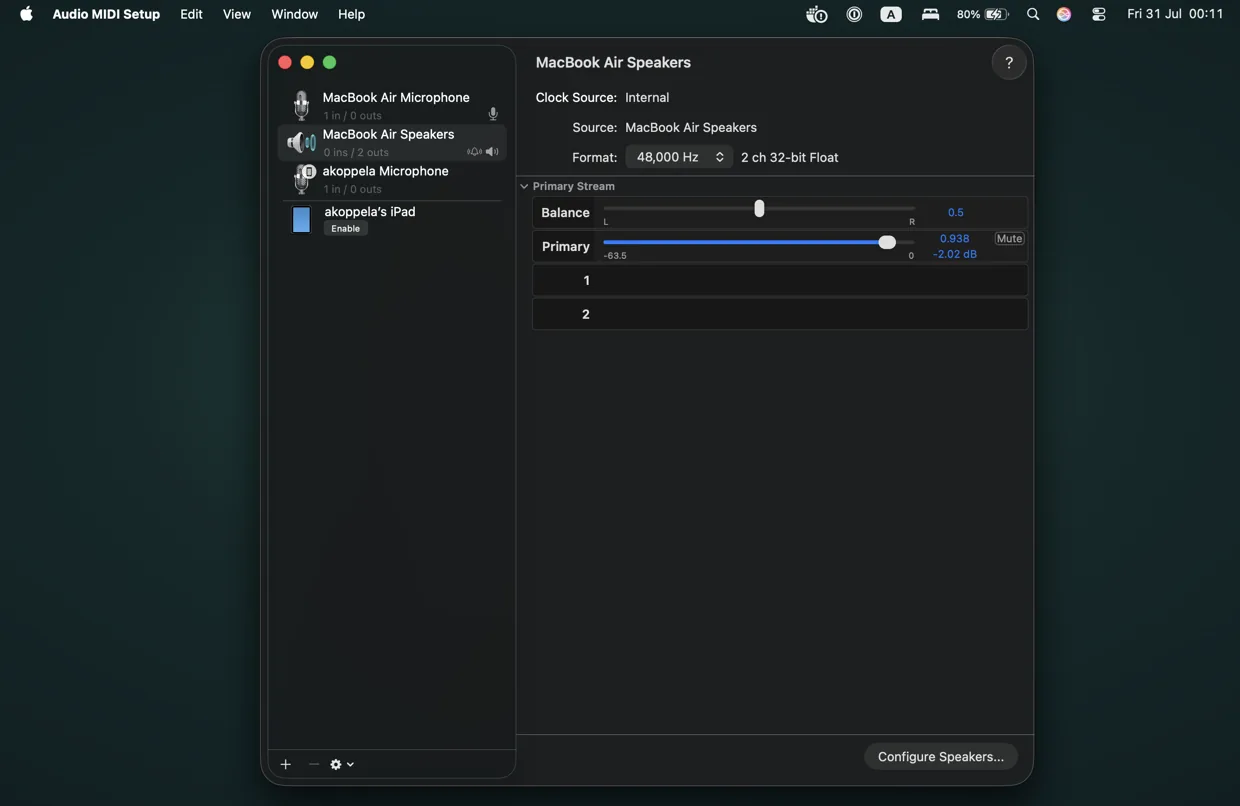
Mac: Audio MIDI Setup → select the iPad → Enable. Windows uses Interaktiv Bridge instead. - In Traktor: Preferences → Export. Tick every box and save the file — this is your own settings backup, and it is what the app merges into.
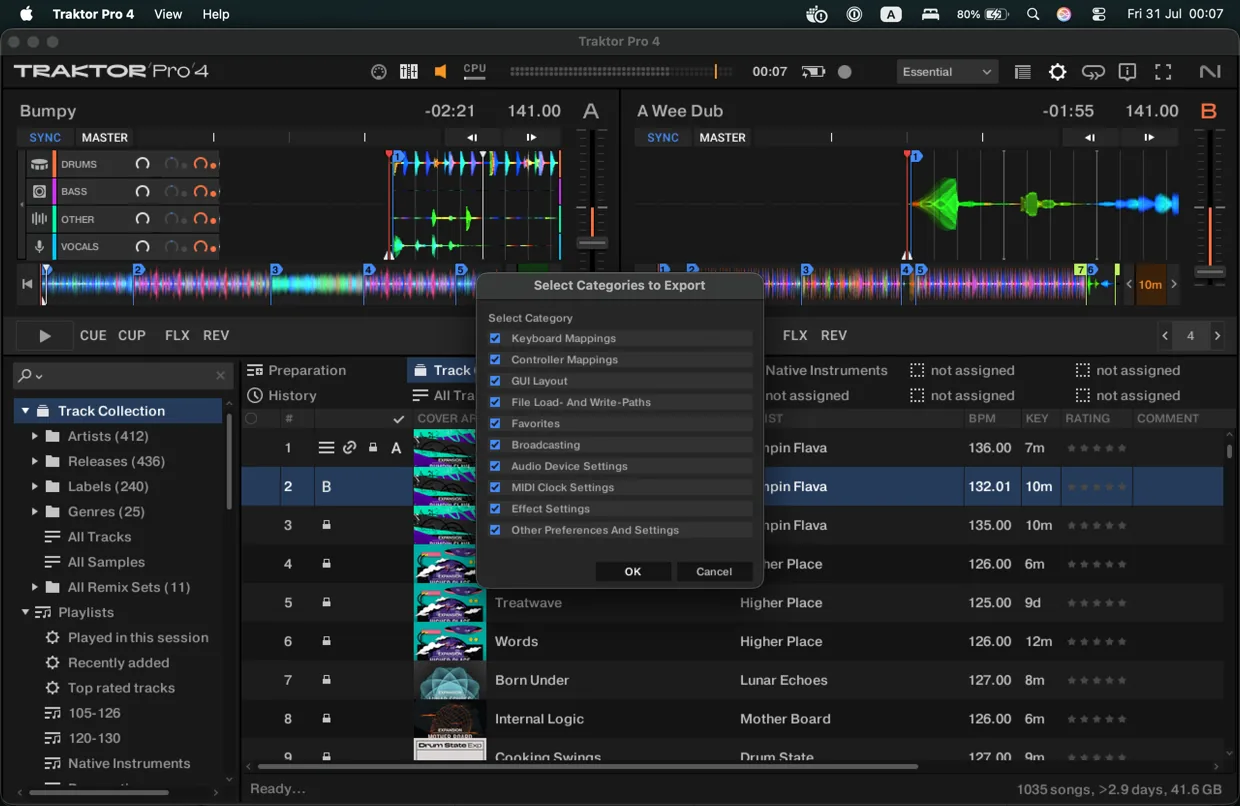
Traktor: Preferences → Export, every box ticked. The file is your own settings backup. - Open the address the app’s setup screen shows, in a browser on your computer. On Windows with Interaktiv Bridge running, right-click the Interaktiv icon in the tray, then Add Interaktiv Tap to your Traktor settings — the same page opens over the USB cable, no Wi-Fi needed.
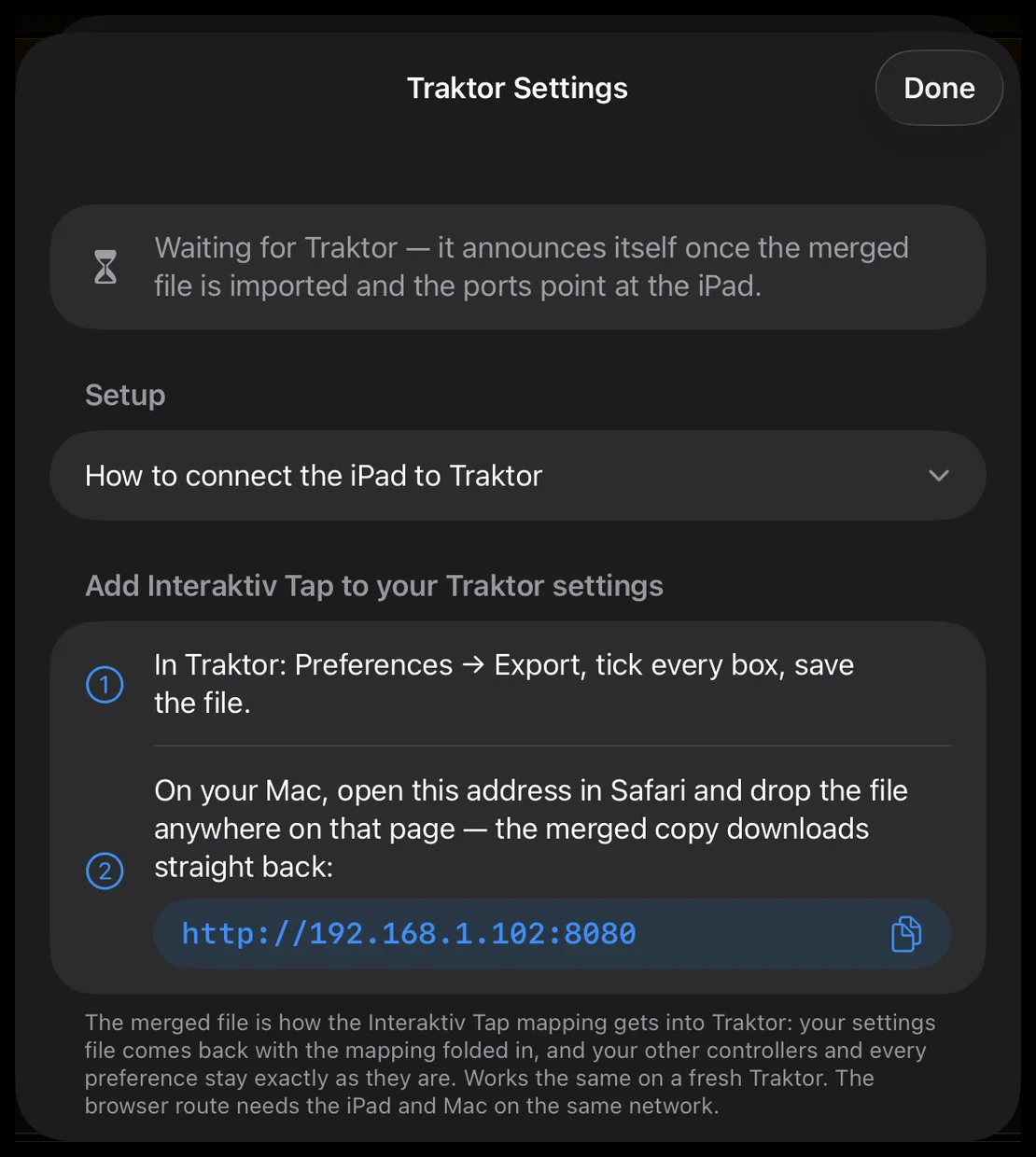
The app’s setup screen on the iPad: the two steps, and the address to open in a browser on your computer. - Drop the exported file anywhere on that page. The app folds its mapping into your settings — everything you had stays as it was — and the merged copy downloads straight back. No shared Wi-Fi? AirDrop the file to the iPad and choose Interaktiv Tap, then AirDrop the merged file back.
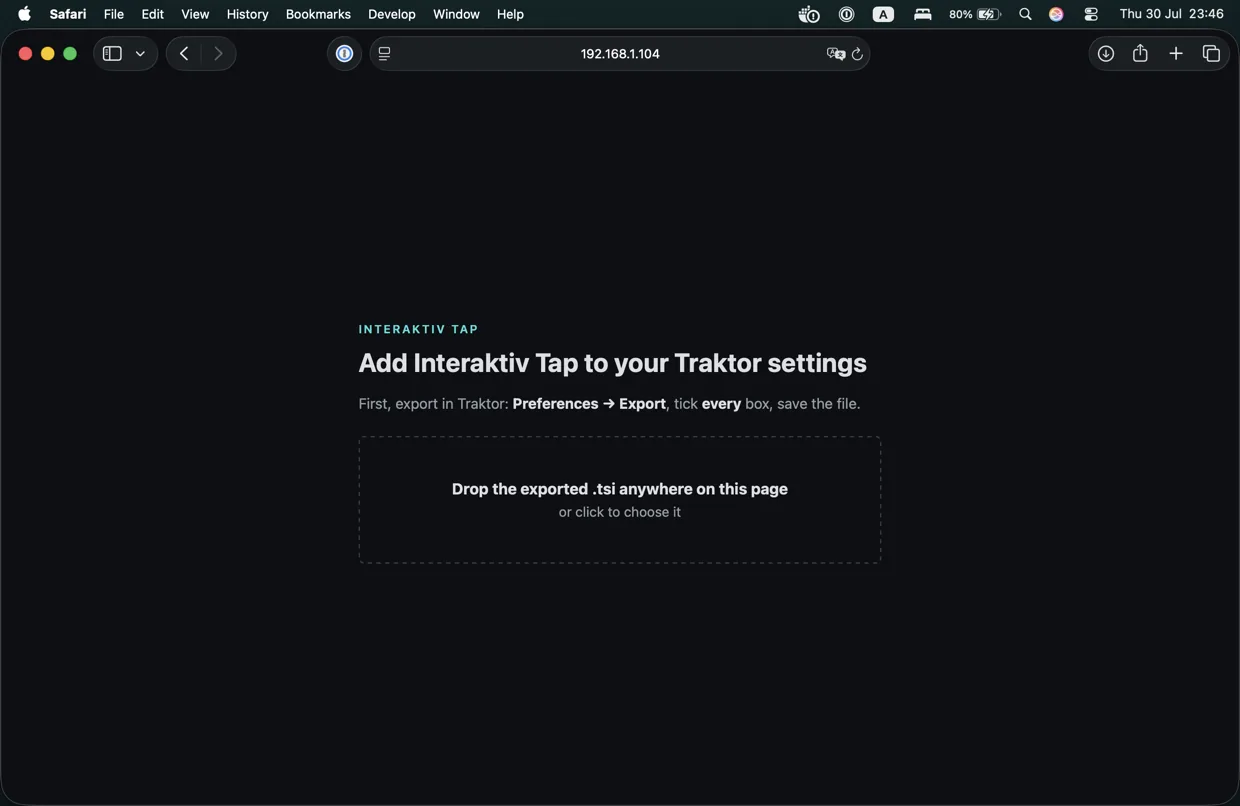
The merge page at the address the app shows: drop the exported file anywhere on it. - Save the merged copy when your browser asks — it asks before saving a file from a local address; choose Keep or Allow at its downloads button, top right of the window. The file and its device inside Traktor carry the mapping’s version, e.g. “Interaktiv Tap 1.3 (15.8.2)”, so Controller Manager shows exactly which mapping you imported — including the revision, so two files from the same app build are still told apart.
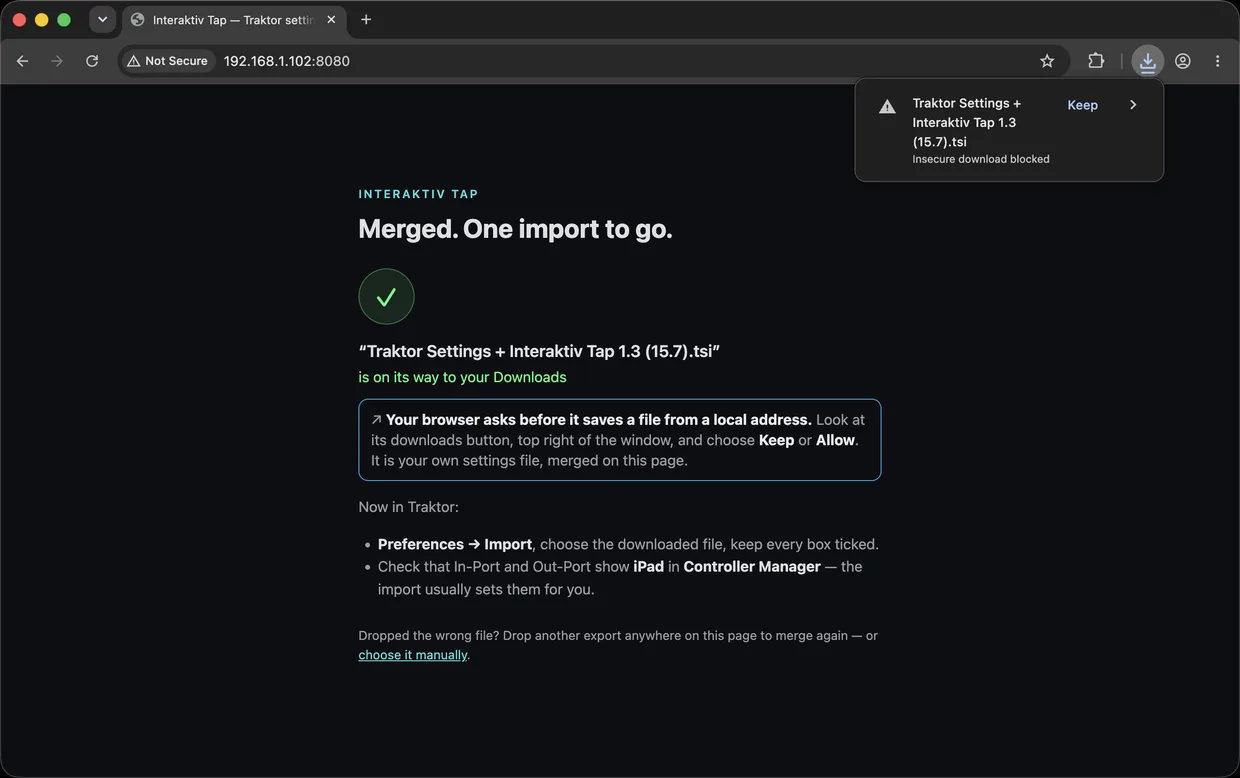
After the drop: the merged file is on its way, and the browser asks before saving from a local address — choose Keep (or Allow) at its downloads button, top right. - In Traktor: Preferences → Import, choose the merged file, and keep every box ticked. This is how the Interaktiv Tap mapping gets into Traktor — along with a new four-deck “Interaktiv Tap” layout, the four-band EQ, four FX units, and the pinned effect list.
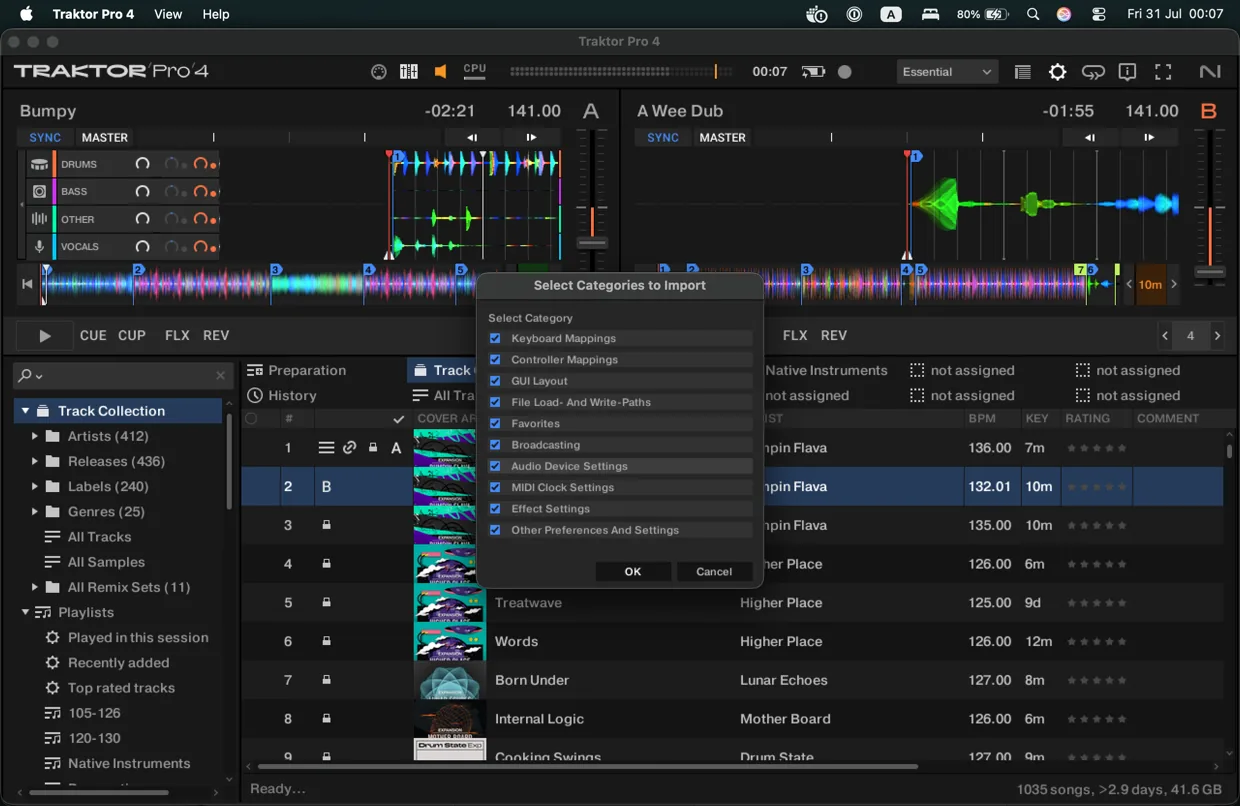
Traktor: Preferences → Import, the merged file, every box kept ticked. - In Controller Manager, check that the In-Port and Out-Port show iPad — the import usually sets them for you.
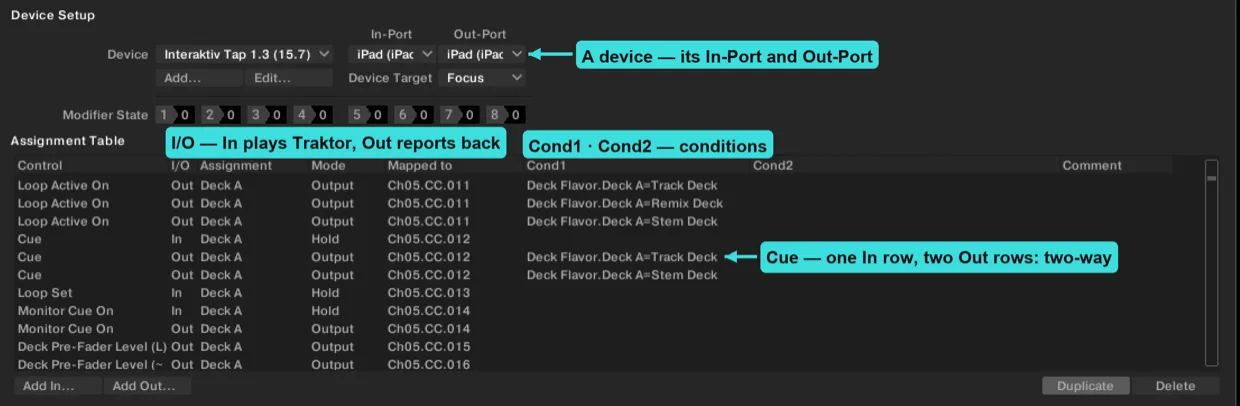
Controller Manager: the Interaktiv Tap device with iPad as In-Port and Out-Port. - Play. Traktor announces itself the moment the ports are set — the app confirms the connection, and the iPad plays Traktor in sync both ways.
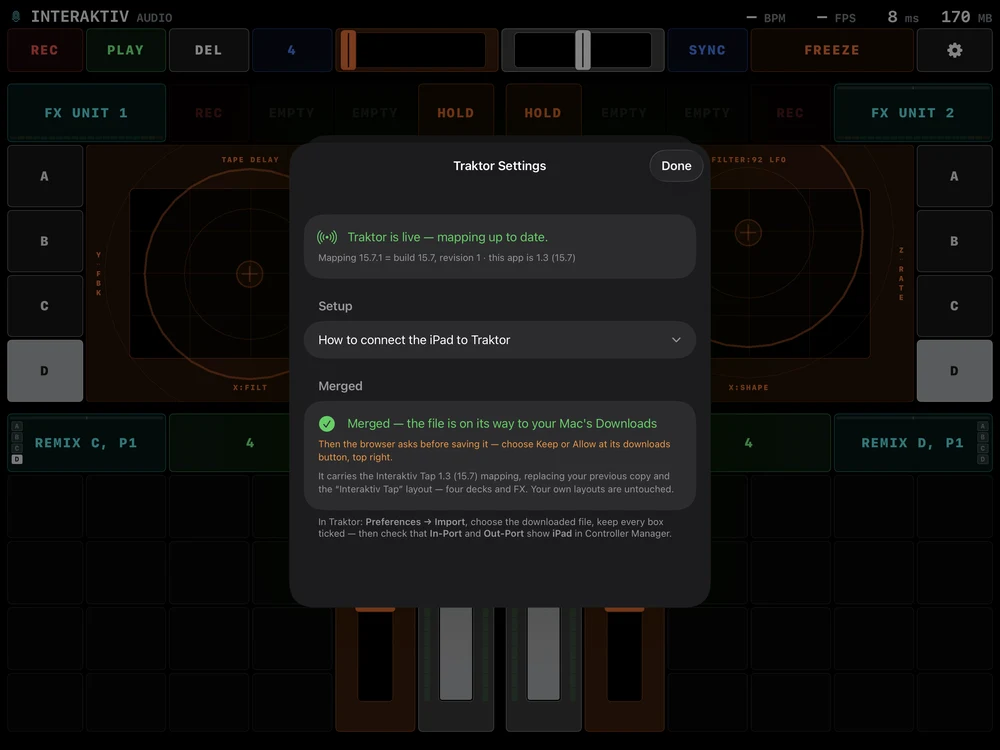
The app confirms the connection the moment Traktor answers. - One habit to keep: after every app update, repeat the export → merge → import round trip. Updates can extend the mapping and the effect list, and Traktor needs the fresh file to match the app.
#Set up Traktor
Importing the merged file sets all of this for you — it carries these preferences alongside the mapping. Here is what it changes, and where each one lives if you ever want to check or set it by hand:
- Four decks
- Interaktiv Tap plays four decks, so Traktor needs all four. The merged file adds a new layout called “Interaktiv Tap” to your Layout Manager — four decks at Full size with their waveforms and the FX panels on screen, laid out for playing from the iPad — and opens Traktor on it. Your own layouts are left exactly as they were, one click away in Traktor’s layout menu. If your export didn’t include the GUI layouts, the app says so; then switch decks on yourself under Preferences → Decks → Show Deck C & D, and show the FX panels via the Global Section (Effect 1 / Effect 2).
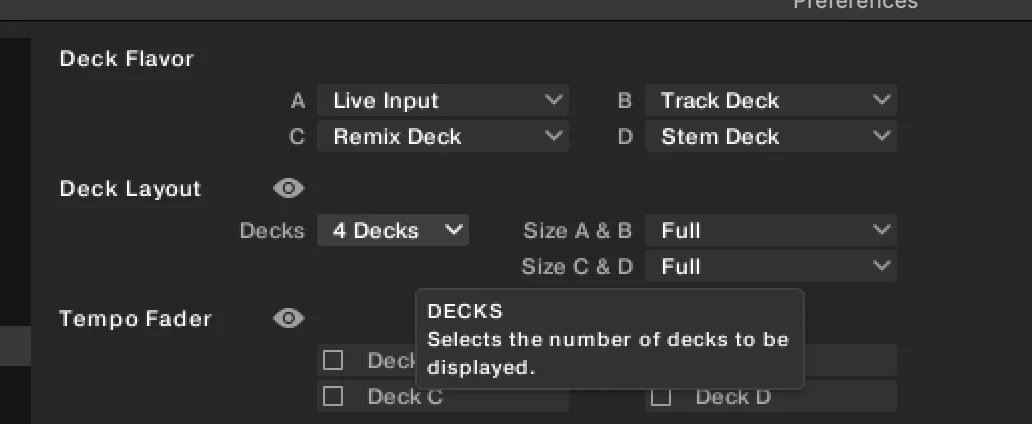
Preferences → Decks Layout → Decks: 4 Decks. The merged file brings this with its “Interaktiv Tap” layout; the Deck Flavor rows above stay your choice. - Four-band EQ
- Preferences → Mixer → EQ Type → Xone. This gives the four-band EQ the app’s EQ page maps to — HIGH, MID H, MID L, LOW, each with a kill.
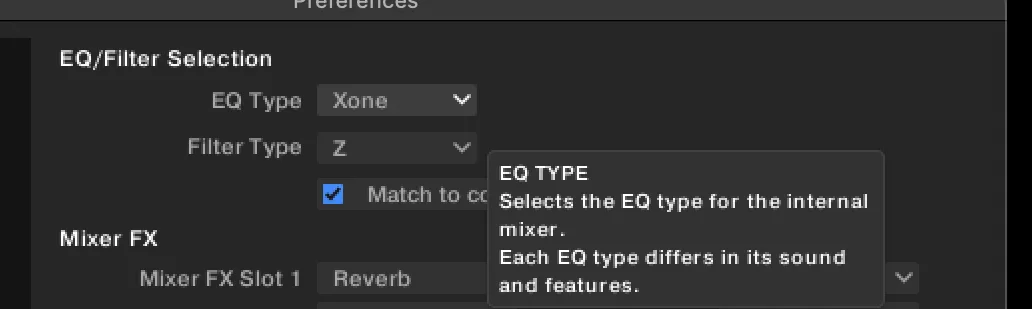
Preferences → Mixer → EQ Type: Xone — the four-band EQ the app’s EQ page maps to. - Four FX units
- Preferences → Effects → 4 FX Units, so each of the app’s FX quadrants has a unit to drive. The four FX panels are set to Single mode at the same time.
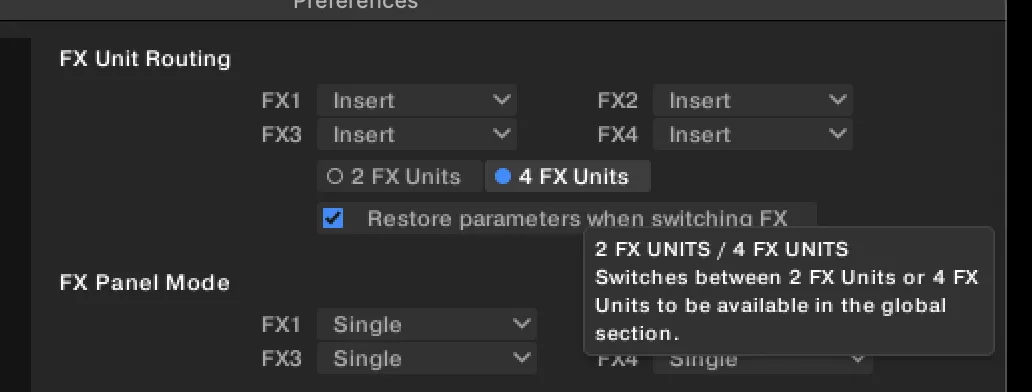
Preferences → Effects: 4 FX Units, panels in Single mode — each of the app’s FX quadrants gets a unit with its full three-knob layout. - MIDI clock
- Preferences → External Sync → Enable MIDI Clock. Traktor sends its clock to the iPad, which is what keeps the gesture recorder and the Loop Recorder in time. It’s off in a stock Traktor, so the merged file switches it on. Tap SYNC in the app’s header to fire the clock at the start of a set.
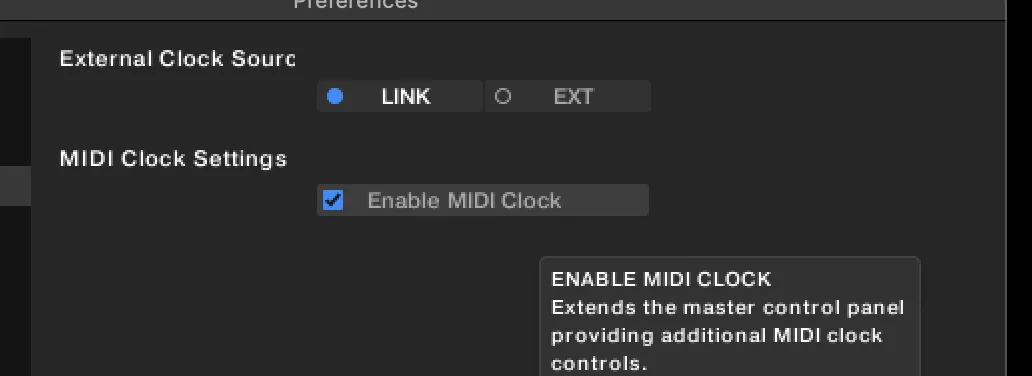
Preferences → External Sync → Enable MIDI Clock. Traktor’s clock is what keeps the gesture recorder and the Loop Recorder in time. - FX pre-selection
- The merged file pins the full effect list the FX units step through, in a fixed order, so the on-screen names match. It replaces any effect pre-selection you curated in Traktor — your export is your backup if you want the old list back. Which of those effects each FX unit actually offers is curated per unit in the app.
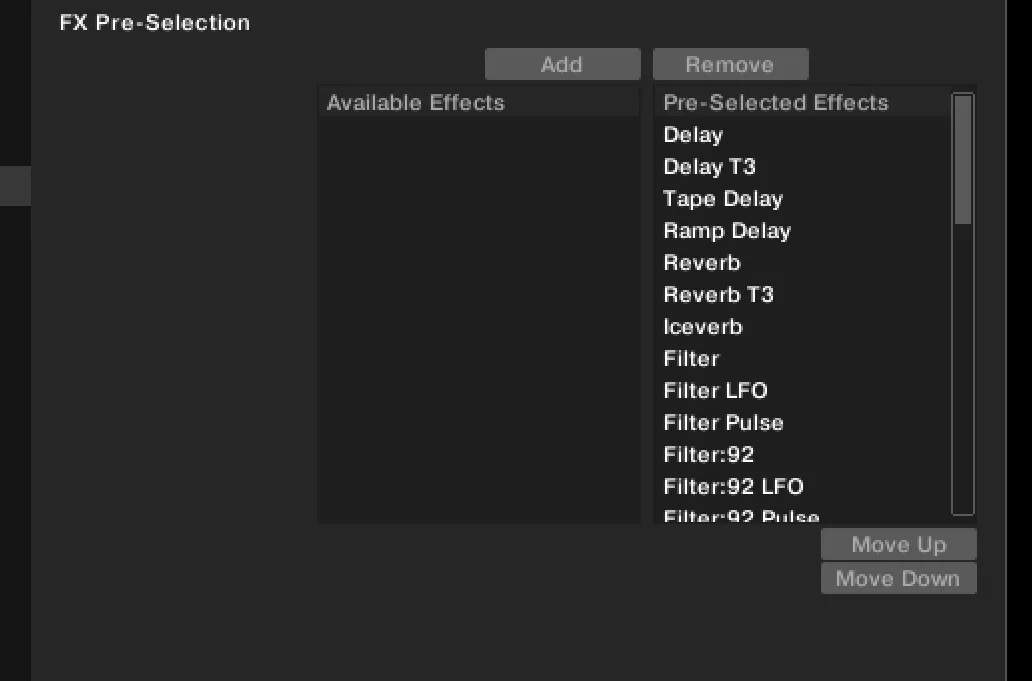
Preferences → Effects → FX Pre-Selection: the list the merged file pins, in a fixed order, so the names on the iPad match Traktor’s. - Mixer FX slots (your choice)
- Preferences → Mixer → Mixer FX. This one stays yours: the four slots set the effects behind the app’s filter / Mixer-FX fader. They’re shared across every deck; choose what each one is, and its colour matches in Traktor and in the app.
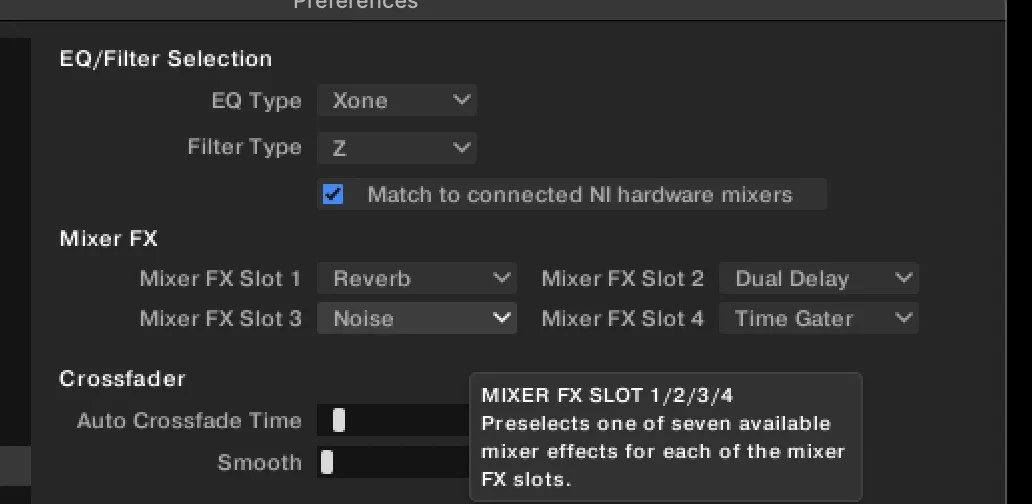
Preferences → Mixer → Mixer FX Slot 1–4: the four effects behind the app’s filter / Mixer-FX fader. These stay yours.
#Merging with your Traktor settings
The merged file is how the Interaktiv Tap mapping gets into Traktor. You export your own Traktor settings, the app folds its mapping and preferences into that file, and you import the result — so Traktor gets Interaktiv Tap without giving anything up. Your export is never modified: the merged copy arrives as a separate file, so the original stays on your disk and you can always go back to it.
The steps themselves — export, open the address, drop, save, import — are under Get started, for a Mac, for Windows with Interaktiv Bridge, and by AirDrop. This section is what the merge does, and why.
Tick every box on the way out and on the way back in. Traktor’s import replaces whole categories, so a file that only holds part of your setup imports only that part. This matters most for controller mappings, because Traktor keeps every controller in one block: importing a file that contains only one mapping leaves you with only that mapping, and any other gear you had set up is gone from Controller Manager. Merging avoids this — your other controllers travel inside the same file and come back untouched.
Nothing you already had is rewritten. Your other controllers come back untouched, and the four-deck setup arrives as a NEW “Interaktiv Tap” layout beside your own rather than as a change to them. The app tells you what it found — how many other controllers it kept, whether it replaced an older copy of its own mapping, and whether it could add the layout. The file also carries the mapping’s port assignment, so after the import the In-Port and Out-Port usually show iPad by themselves.
If something is off:
- It reports no other controllers on a Traktor that definitely has some — your export was missing them. Export again with every box ticked and merge that file instead.
- A past import already emptied your Controller Manager — rebuild it: import the merged file first, then add your other mappings back with Controller Manager → Add… → Import from disk…, which adds a device without touching the ones already there.
#iPad settings (optional)
Two optional iPad settings make the surface feel better — nice to have, not required:
- Full-screen, not windowed
- Settings → Multitasking & Gestures → Full Screen Apps (rather than Windowed Apps or Stage Manager). It stops iPadOS from treating taps near the top edge as window resize or move, so the top row stays reliable.
- Free up all ten fingers
- On the same page, turn off Four & Five Finger App Switching so iPadOS doesn’t intercept multi-finger gestures — leaving all ten fingers for the surface.
#How it talks to Traktor (MIDI)
Interaktiv Tap speaks standard MIDI — CC for continuous moves and notes for the Remix cells. It runs both ways: your moves drive Traktor, and Traktor’s state (play, loop, FX, cue, meters, cell state) echoes back so the iPad always matches. The mapping wires it to Traktor’s commands; it reaches Traktor inside the merged settings file you import once (see Get started).
#The surface
#Reading the screen
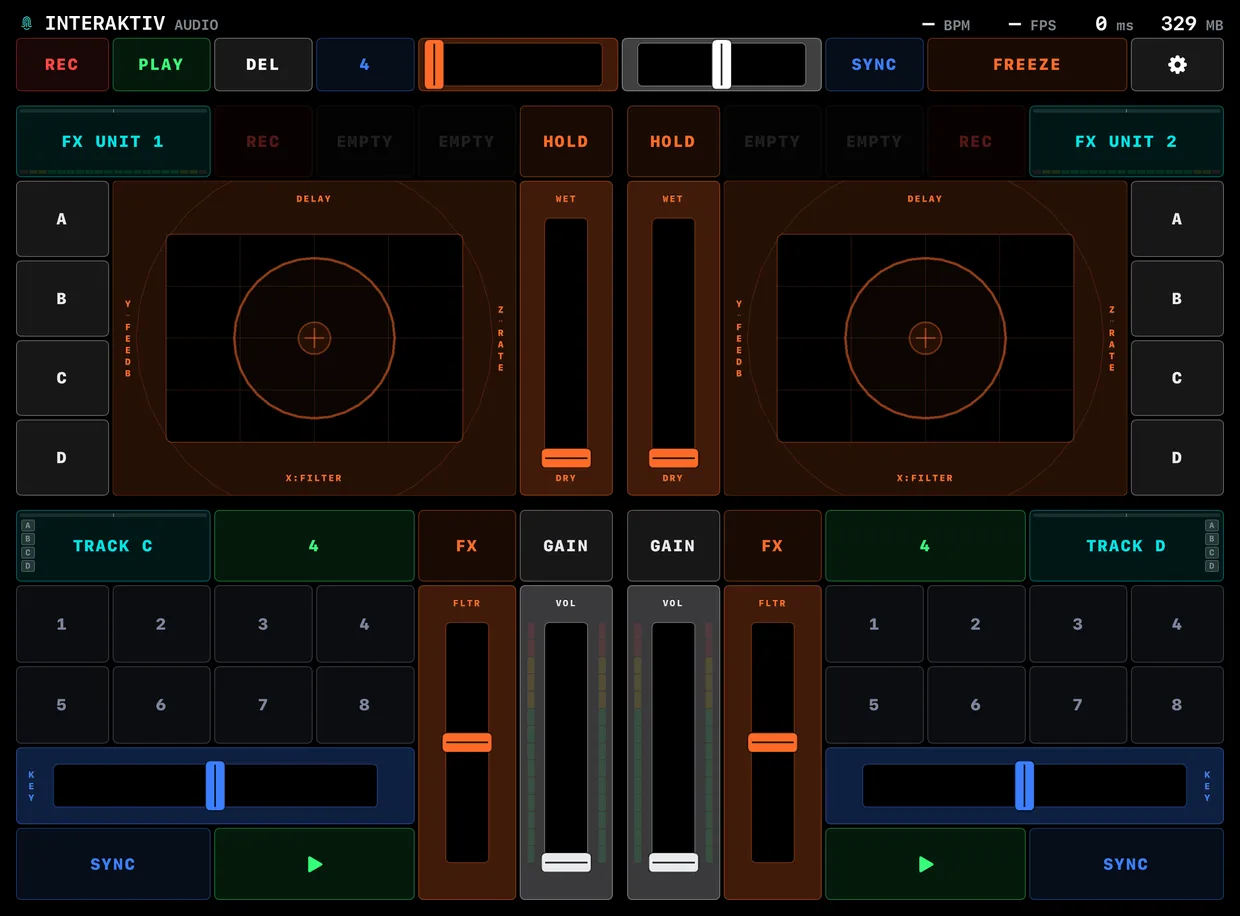
The screen is a 2×2 grid of quadrants, at positions A (top-left), B (top-right), C (bottom-left), and D (bottom-right). Each quadrant is either a deck or an FX unit, and carries a label — like TRACK C, REMIX A, or LIVE B — so you always know what you are touching.
The header’s left half doubles as a status line: while your finger is on something with more to it, the line says what is live right now — the deck letter, the loop size the steppers will change, the gesture that completes the move. Rest one finger on PLAY and it names the two-finger tap; the same on a latched or locked FREEZE; hold the gear and it says to keep holding. When nothing is live it shows the wordmark. When Traktor isn’t answering, the same rest says why instead — “PLAY — waiting for Traktor”, or “connect to a computer first” when there is no link — and the header’s label beside BPM says which.
These hints are on for every new install; turn them off in Settings with Show hints.
#The gestures

Interaktiv Tap uses a small set of multi-touch gestures so the surface stays uncluttered:
- Single tap
- Works the small single-cell buttons and the launch cells.
- Two-finger tap
- The bigger buttons — anything two cells wide or more — so you can’t fire play, switch a quadrant, or save a snapshot by accident.
- Reset a fader
- Double-tap any fader to snap it back to its default — or tap it with two fingers, which does the same and is easier to land mid-set (it even works while you’re still dragging: drop a second finger and lift). Ordinary dragging never triggers a reset.
- One-finger press-and-hold
- Reveals a button’s extra options.
- Two-finger press-and-hold
- Opens a picker — or, on FREEZE, locks the app.
- One-finger swipe
- Expands or collapses a deck.
#Hold to reveal more
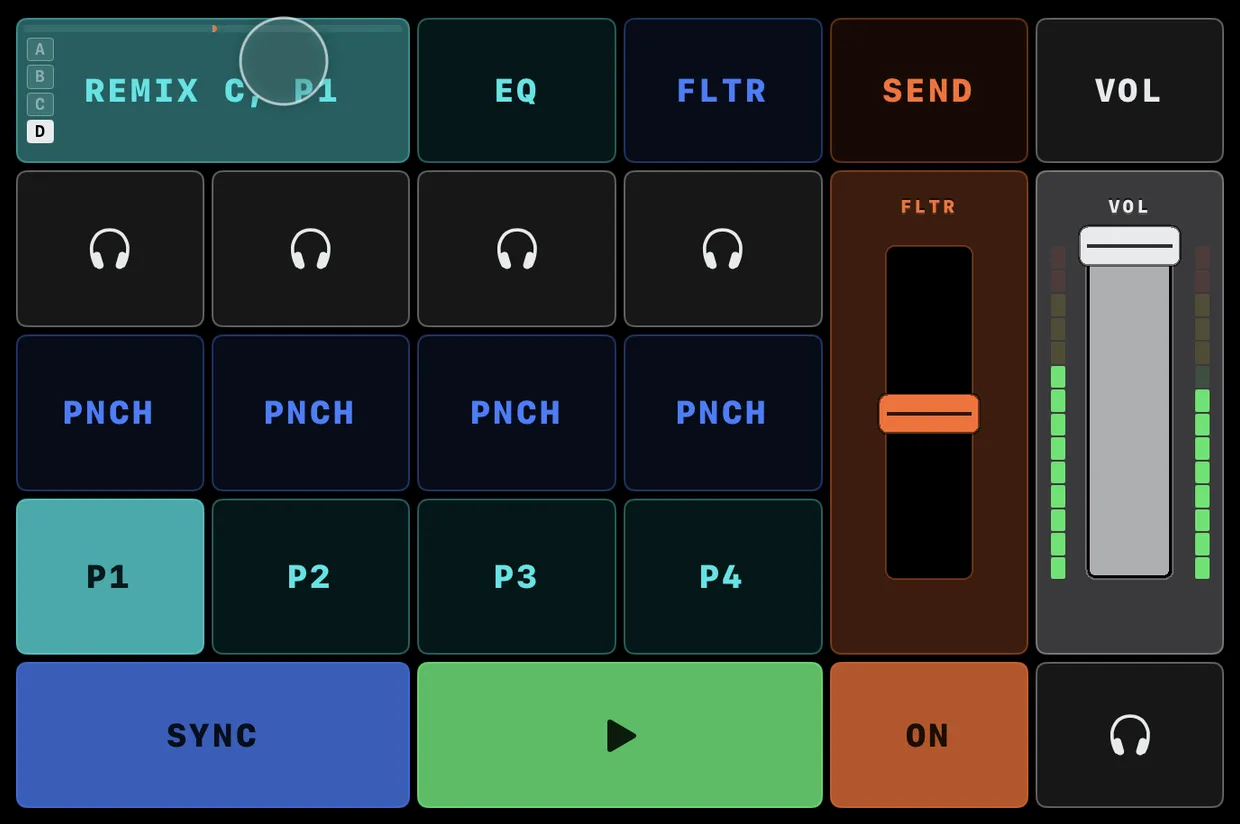
If a control isn’t on the screen, it’s usually one hold away. Hold a button with one finger and its extra options appear for as long as you hold. The rule of thumb: if you want something you can’t see, hold.
What each hold reveals:
- Deck name button
- The main one — depending on the page it reveals the page switches, the KEY lock, the Mixer-FX on/off, the headphone cue, and more. It also reveals the deck’s pages; whichever page you are on reads HOME, because tapping it takes you back there.
- LOOP, PLAY, SYNC, GAIN and the FX button
- Each reveals its own — loop sizing, cue and reverse, tempo-bend nudges, gain on the volume fader, the Mixer-FX slots.
- On an FX unit
- Hold the FX UNIT button to pick the effect (two-finger hold opens CHOOSE EFFECTS), and hold SIZE to set a recorded loop’s length.
#Decks
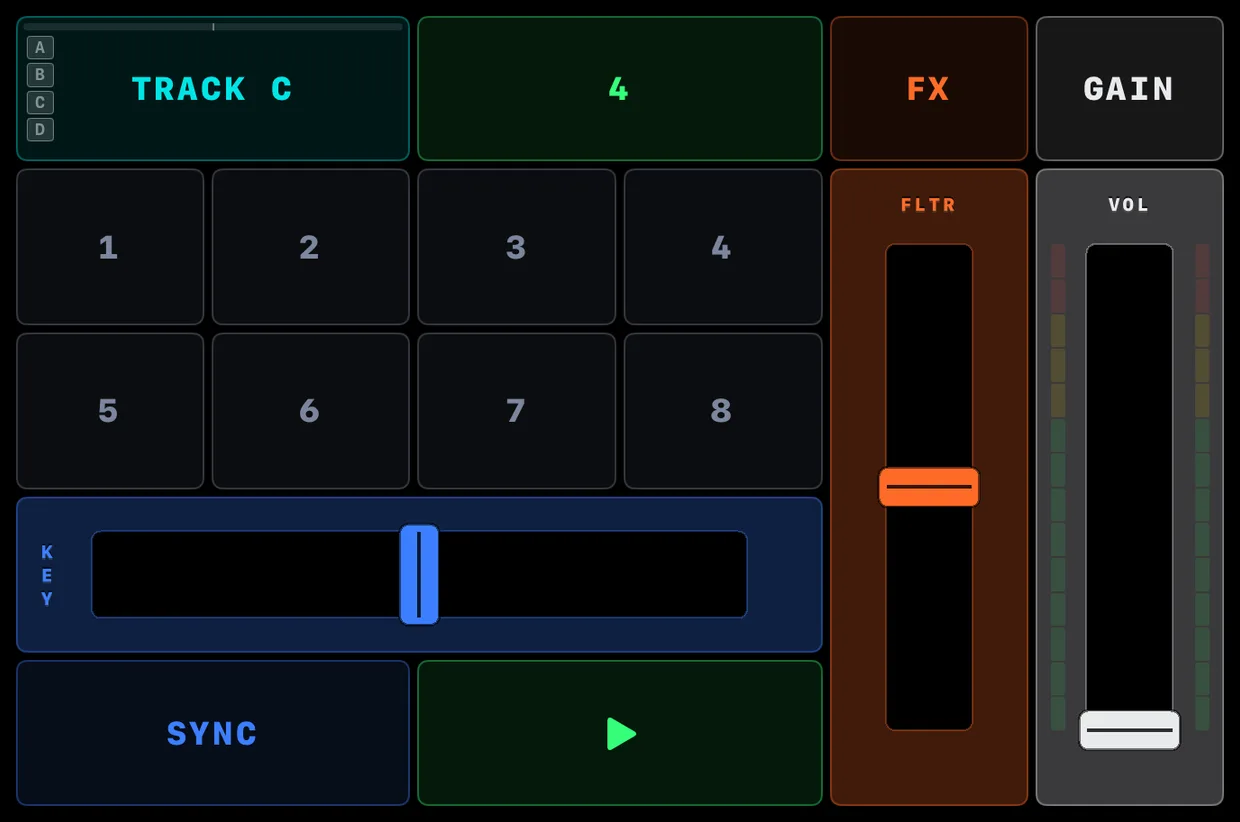
#Switch a quadrant between a deck and an FX unit
Two-finger tap the quadrant’s name button — the deck name or the FX UNIT label on the outer edge. It flips in place, keeping the rest of your layout.
#Choose a deck flavor
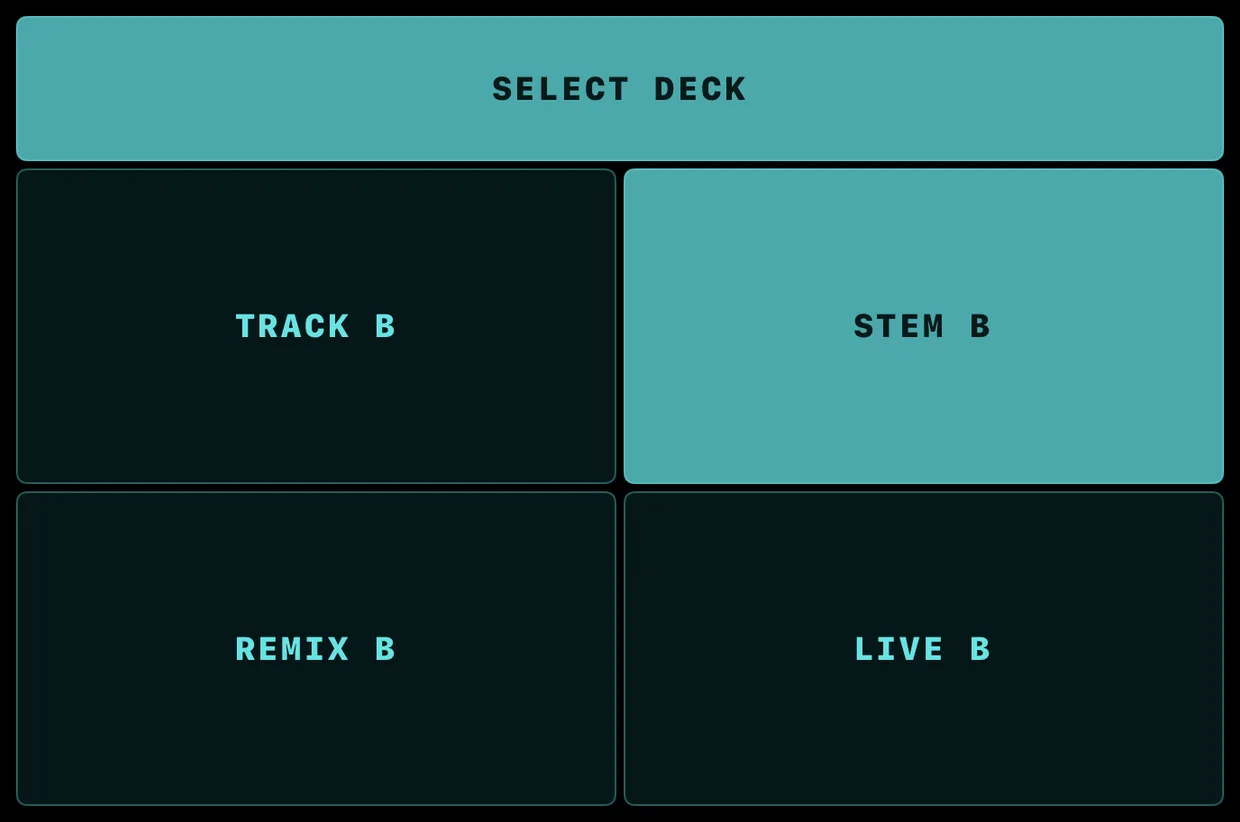
The iPad follows Traktor by itself: when a deck’s flavor changes in Traktor, the quadrant switches to it and lands on its Home page — a quadrant you have flipped to an FX unit is left alone. To choose by hand, press the deck name button with two fingers and hold for about a second. A SELECT DECK picker opens with four choices. Two-finger tap one to switch; two-finger tap the header to cancel.
- Track
- A standard beatgrid deck — hot cues, loop, transport, key, and EQ.
- Stem
- Adds per-stem pages for the four stems’ volume, filter, and FX send — hold the deck name to reveal each page’s own per-stem buttons (MUTE on VOL, ON/OFF on FILTER and FX SEND).
- Remix
- Turns the Home page into a 4×4 cell launcher with four sample pages and per-slot monitor and punch.
- Live Input
- Passes external audio — an aux, mic, or turntable — through the channel’s EQ and filter.
#Switch pages
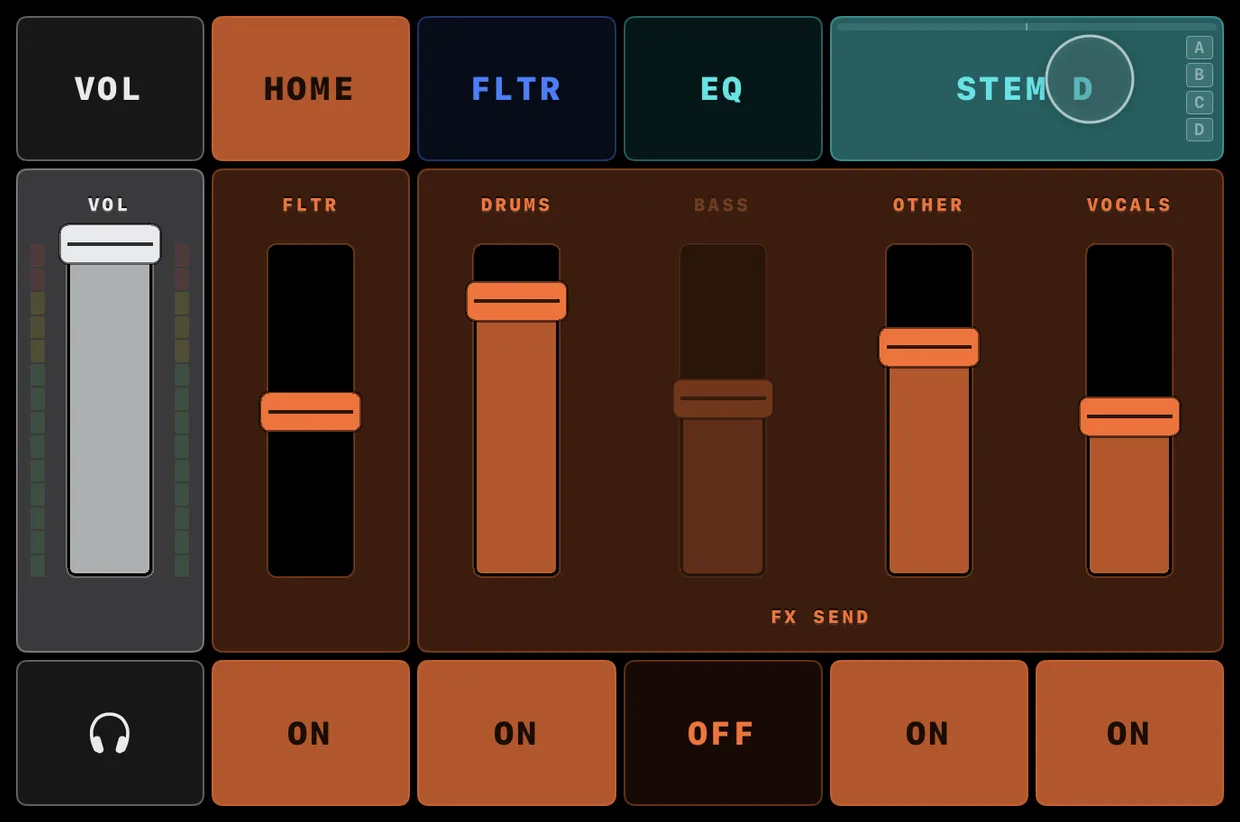
A deck shows one page at a time. Press and hold the deck name button with one finger — the page buttons appear for as long as you hold, and you tap one to switch to it. The Home page (hot cues, key, transport) is the default: whichever page you are on, its button reads HOME, and tapping it takes you back. Or skip the hold — swipe the deck name button toward the screen’s outer edge (left on decks A and C, right on B and D) and the deck returns Home from any of its pages. An expanded deck has no swipe — its held page button reads KILLS — so collapse it and it returns Home. EQ is the four-band isolator with kills; Stem and Remix decks add VOL, FILTER, and FX SEND. A Track deck has just the EQ page.
#Expand and collapse
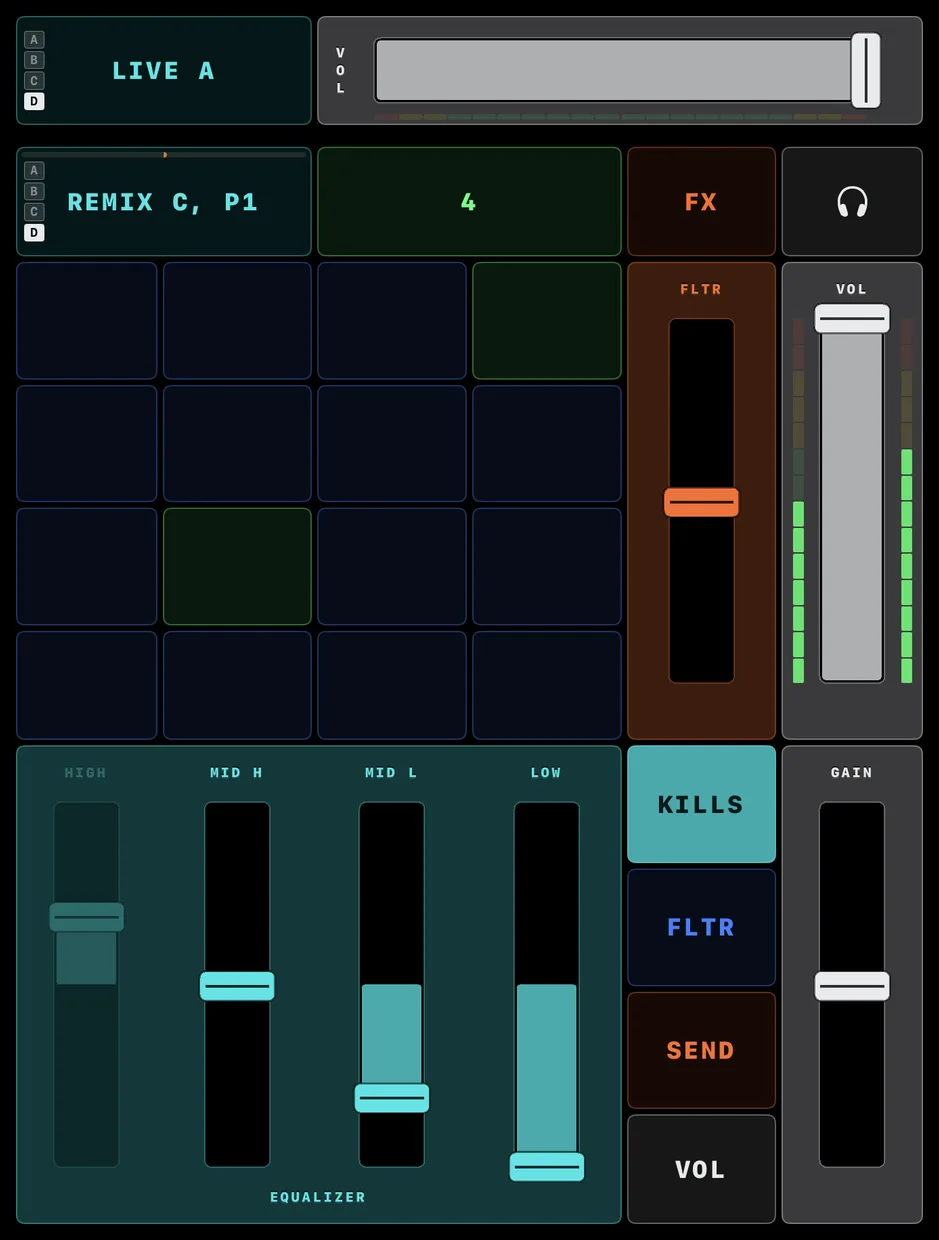
Swipe the deck name button to expand a deck so it fills its column. Top decks (A and B) expand with a downward swipe; bottom decks (C and D) expand upward. Live Input decks do not expand.
When a deck expands, its column-neighbour shrinks to a single-row strip pinned to the top or bottom edge, keeping the volume fader with its meters.

Hold the strip’s name button and PLAY and the headphone cue take the fader’s place for as long as you hold — a Live Input has no transport, so its strip offers only the cue.

A collapsed FX unit keeps performing too: its strip carries HOLD (REV while a loop plays), the two gesture slots, and SIZE — so you can latch the effect and launch or flip loops without expanding the unit. SIZE lights only while a loop plays, and holding it turns the slots into halve/double buttons.

Getting back:
- To two equal decks — swipe the expanded deck’s name button the other way, or swipe the strip’s name button back toward its edge. Collapsing a deck returns it to its Home page.
- To Home from a page, at normal size — the name button’s outward swipe, from any page: EQ on a Track deck, any of the four on Stem and Remix.
- From an expanded deck — it always shows a page, so the way back is to collapse it.
On an expanded deck the kill buttons are one hold away from the faders:
- Hold the page button of the page you are on — it reads KILLS while selected (Stem and Remix) — or the tall KILLS button beside the faders (Track). The kill row appears under the faders for as long as you hold, and the button dims to half while it does.
- Holding the deck name button does the same.
- Pressing a different page just switches to it — even while you are still holding KILLS, the kill row closes and the new page shows clean. To see that page’s kills, lift and hold its button again.
#Playing a deck
#The Home page
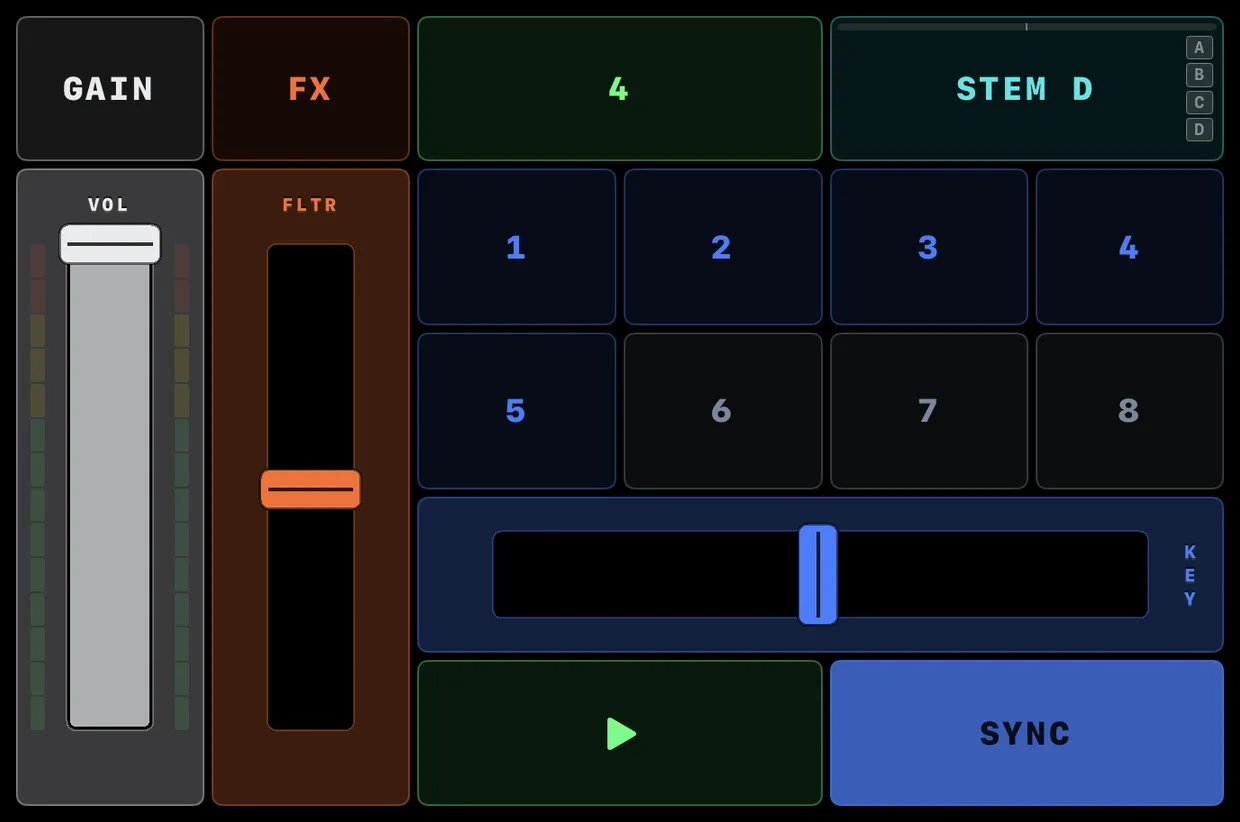
The Home page is the deck’s default view. To return to it, swipe the deck name button toward the screen’s outer edge, or hold the name and tap the page button that reads HOME. An expanded deck offers neither — collapsing it returns it Home. On Track and Stem decks it shows eight hot cues, a horizontal KEY fader, and a transport row.
- Hot cues
- Hold the deck name and any cue that has something stored turns into a red DEL — hold that to delete the cue (a tap does nothing, so you can’t lose a cue by brushing it). Empty pads stay as they are.
- KEY
- Tap above or below center to nudge a semitone; two-finger tap to reset.
- PLAY and SYNC
- Two-finger tap PLAY to start or stop the deck, and two-finger tap SYNC to lock it to the tempo. Hold PLAY for CUE and CUP (or REV and FLX while it plays), hold SYNC for tempo-bend nudges. Double-tap SYNC to snap the deck’s beat phase onto the master’s — Traktor’s Phase Sync, for a loop or a reverse that ended off the beat.
#Hot cues
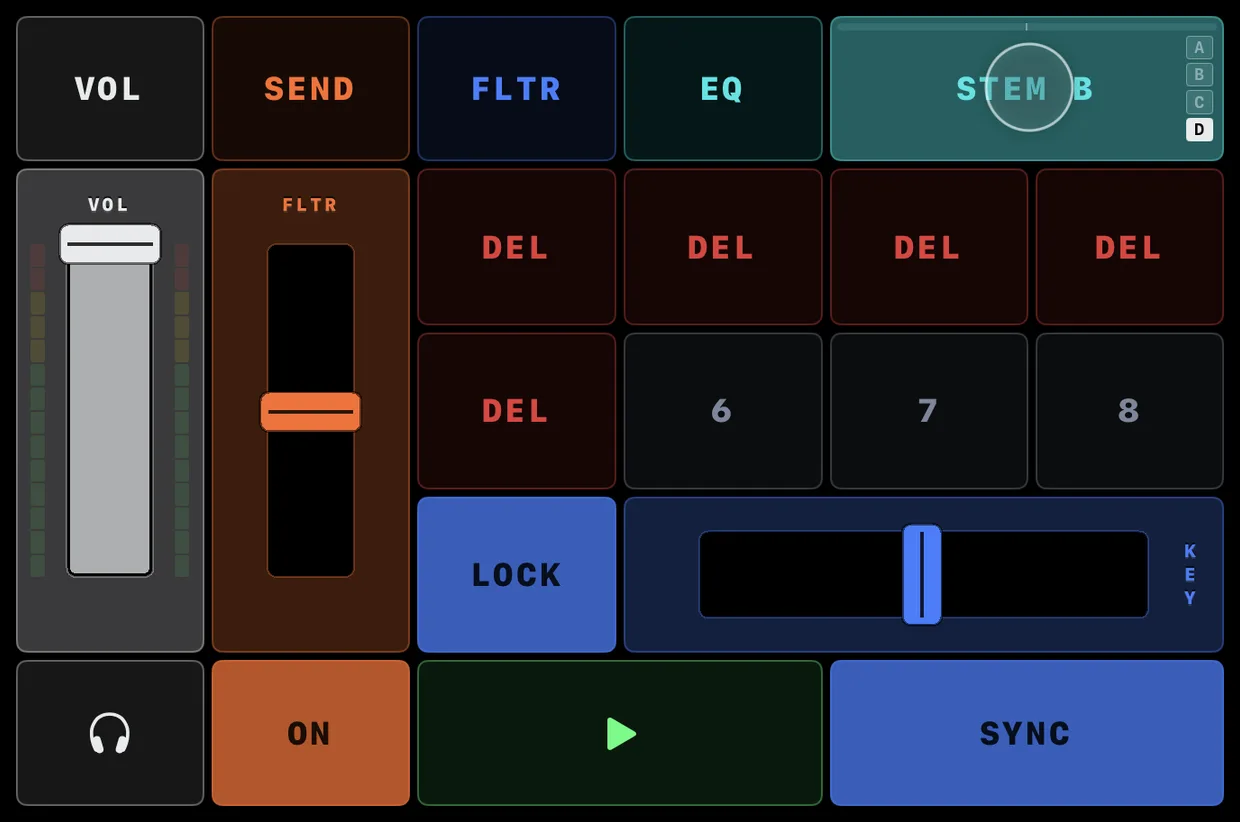
The Home page has eight hot cues. Tap a lit cue to jump to it. Tap an empty (dim) cue to set one at the current playhead. A cue’s color shows the type it has in Traktor: Cue (blue), Fade In (orange), Fade Out (red), Load (yellow), Grid (white), Loop (green).
#Set a loop
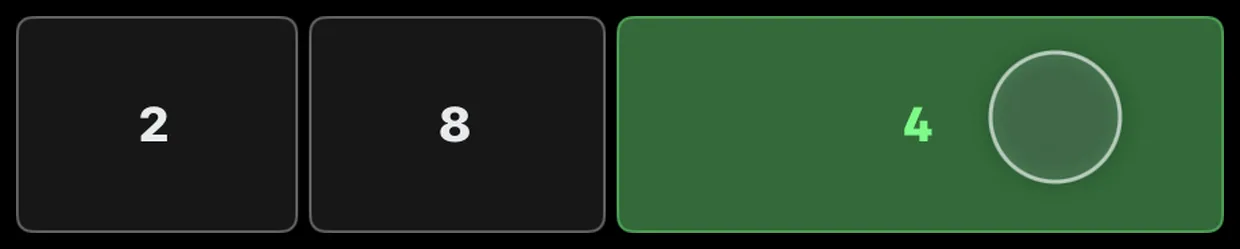
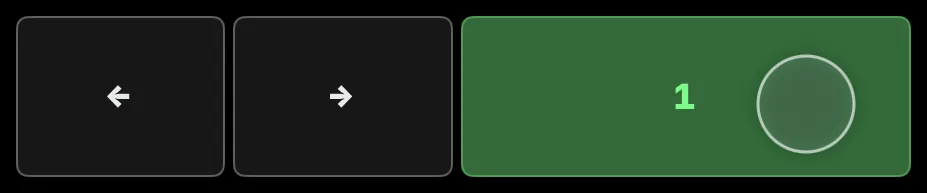
Two-finger tap the LOOP button to start an auto-loop at the current size. To change the size, hold LOOP with one finger — two buttons appear beside it showing the next size down and the next size up (2 and 8 around a 4); tap one to step, from 1/32 up to 32 beats. Two-finger tap LOOP again to release the loop. A loop shorter than a beat is the one that can end off the beat, so from LOOP it is a roll the app holds for you: two-finger tap to start it, again to end it, and the track carries on underneath, as under a held roll — halve a running loop below a beat and it becomes one. While you hold LOOP, the deck name becomes ← and →: tap one to jump back or forward by the size LOOP shows, or hold it to keep moving. With Flux Mode on and a loop running, a held arrow moves the loop once per loop, in time — hold a 1/32 loop and walk it for a glitch. (Live Input decks have no loop.)
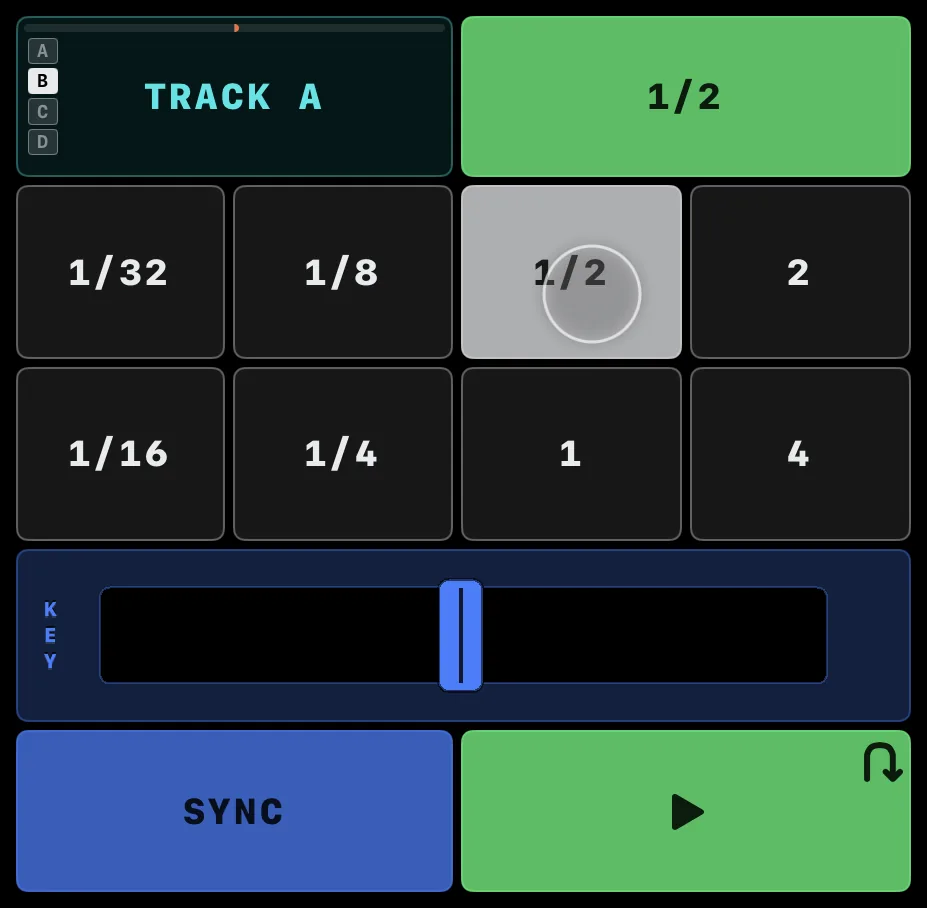
Hold LOOP with one finger on a deck that is playing and not looping, and the eight hot-cue cells become one roll surface, in white: 1/32, 1/8, 1/2 and 2 beats along the top, 1/16, 1/4, 1 and 4 below — down is a little longer, right is a lot longer. Touch it and the deck loops at the size under your finger; slide and the size follows; lift and the loop ends where the track would have been, as if it had played on underneath — a stutter you can play. Flux mode is what keeps the track running underneath: a roll switches it on for the hold if it was off, and leaves it as it found it — and so does REV, so a roll and REV held together keep it on until both have let go. A roll sets the deck's loop size, and LOOP shows the last size afterwards. While a loop is running the cells stay hot cues — a roll would end the loop — and so do they on a stopped deck, which has nowhere to return to. Switch Flux Mode off under a held roll or REV and it ends, for the same reason. Swipe down on LOOP and the rolls stay on screen with no finger on LOOP; swipe up and the hot cues come back — as they do by themselves whenever the rolls go away, for a loop or a stopped deck. A roll and a loop never overlap: while a roll is held, LOOP's two-finger tap does nothing (lift the roll first), and a loop set from LOOP takes the rolls away. A held roll also freezes its deck, the way FREEZE freezes the whole app: move KEY, VOL, the EQ or the filter while it rolls and they come back when the roll ends — except a control your finger is still on, which stays where you hold it. On a Remix deck the rolls take the launcher’s top two rows; the third row keeps one row of cells and R1 to R4 under it choose which row, so every cell stays one tap away, rolls held or latched. Latched rolls stay through the deck name’s hold: the hold shows its own controls — the page row, DEL on the cues, a Remix deck’s monitor and punch rows — and the rolls come back when it ends.
#Start and stop a deck
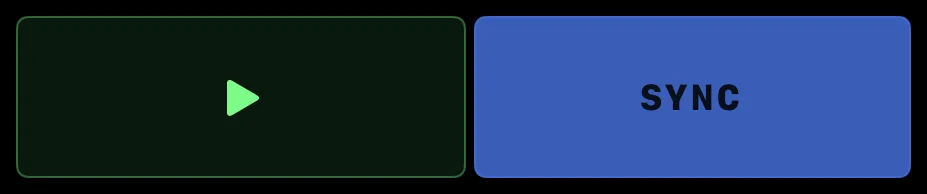
Two-finger tap PLAY in the deck’s transport row (Home page) to start the deck; two-finger tap it again to stop. (Two fingers so a stray touch can’t fire it mid-set.)
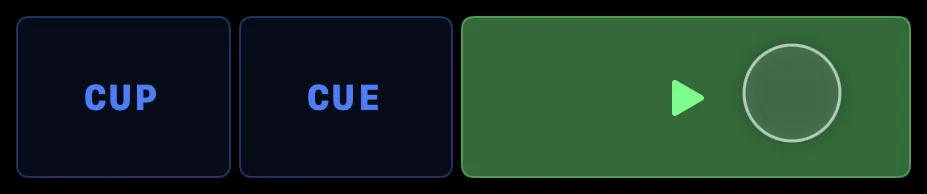
Hold PLAY with one finger and two more buttons take SYNC’s place beside it, the pair that suits what the deck is doing. While it is stopped you get CUE and CUP: hold CUE to hear the track from its cue point and let go to jump back, or press CUP and the deck starts from the cue point the moment you lift your finger — the drop timed by your release.
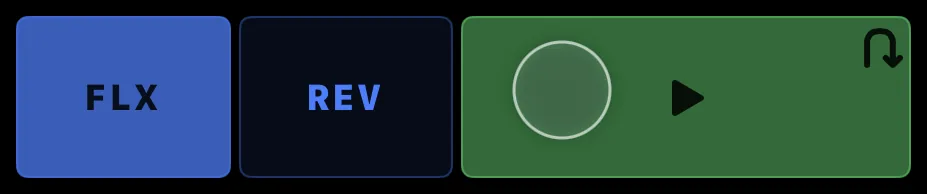
While the deck is playing the same hold gives you REV and FLX. Hold REV and the track runs backwards; let go and it carries on from where it would have been, so the mix stays in time — the censor move. FLX latches that same behaviour on for everything else: with it lit, a hot cue or a loop releases back onto the running timeline instead of leaving you behind. It stays on until you tap it again, and Traktor is what lights it. While it is on, PLAY carries the same u-turn arrow Traktor marks flux with — so you can see the deck is in flux without holding anything.
#Sync a deck
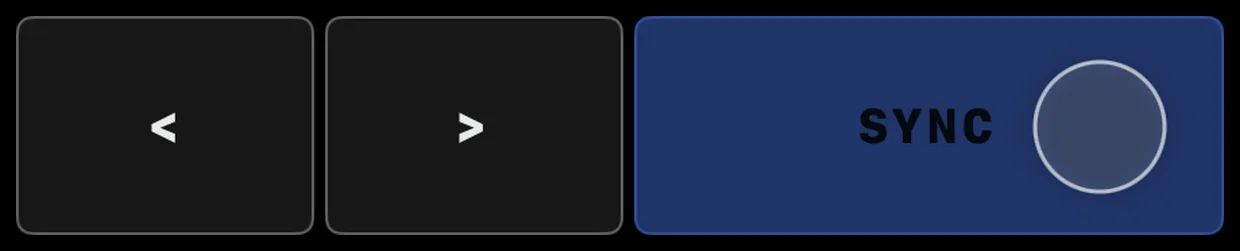
Two-finger tap SYNC to lock the deck to the master tempo; two-finger tap again to release. To nudge the timing by hand, hold SYNC with one finger — ‹ and › buttons appear where PLAY was; press and hold ‹ to bend the tempo down or › to bend it up, and let go to stop. The thin bar along the top of the deck name button is Traktor’s phase meter — bend until it sits back on the centre tick.
#Change the key (pitch)
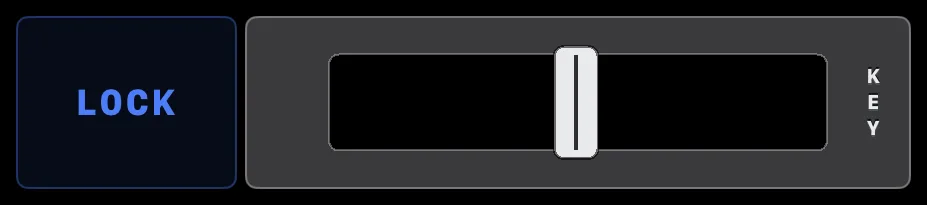
The KEY fader on the Home page shifts the deck’s pitch. Drag it for a continuous change, or tap just past center to either side to nudge it a semitone — up to ±12. Tap with two fingers to snap back to the original key (on the KEY fader every single tap steps, so there is no double-tap). Hold the deck name button to reveal a LOCK toggle beside the fader — Traktor’s keylock; with keylock on the KEY fader turns blue, with it off the fader is white.
#Remix cells
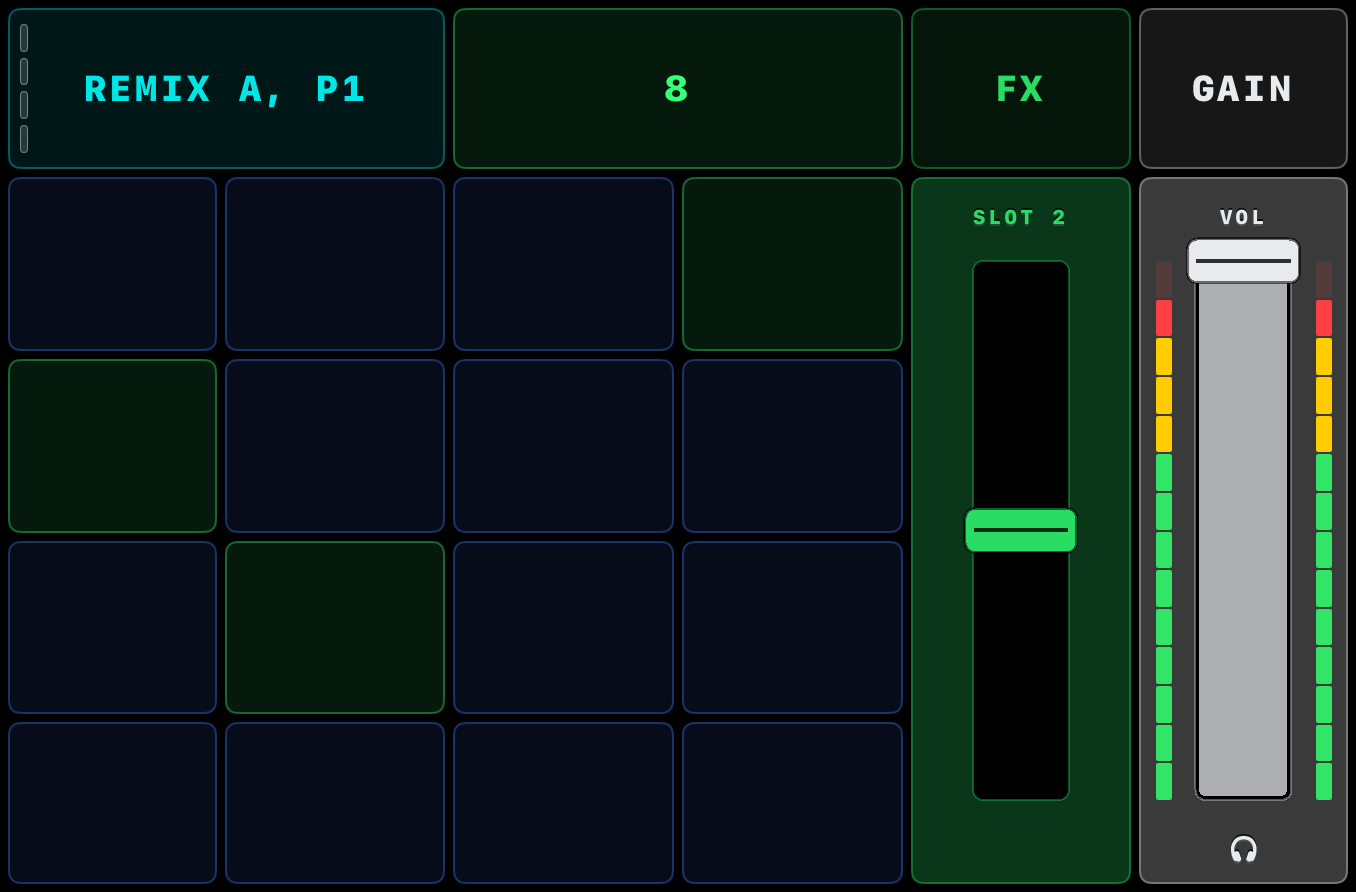
A Remix deck shows a 4×4 grid of cells. Cells show their state by color — loaded, queued, playing, or stopping.
Launching and stopping:
- Tap a loaded cell to launch it — if Traktor’s quantize is on it starts in time, snapped to the quantize size you’ve set (a beat, a bar, and so on); otherwise it starts at once.
- Tap the playing cell to stop it. You can stop a cell only while it’s actually playing; if another cell is queued, that first tap cancels the queue instead.
- A cell that’s only cued, not yet playing, can’t be stopped — only re-triggered. That’s Traktor’s behavior, not the app’s.
Hold the deck name button to reveal the P1–P4 sample pages, each slot’s MON (monitor) and PNCH (punch) buttons, and the deck’s PLAY and SYNC — which sit in the transport row on Track and Stem decks but live under the hold on a Remix deck.
#The mixer
#The channel strip
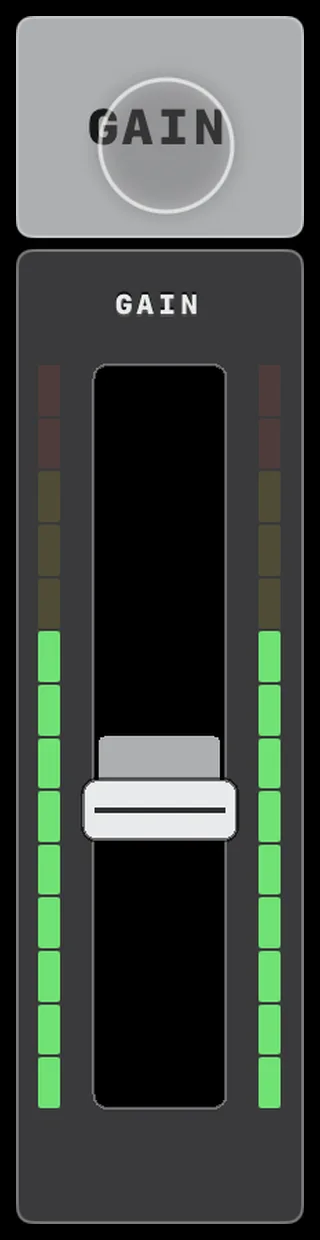
Each channel has a volume fader — hold GAIN to trim gain on the same fader — a four-band EQ with a kill per band, and a filter that doubles as the Mixer FX amount. Hold the deck name to reveal a headphones (PFL) cue button below the volume fader; while cue is on, the volume fader shows a headphones icon.
#Kill an EQ band
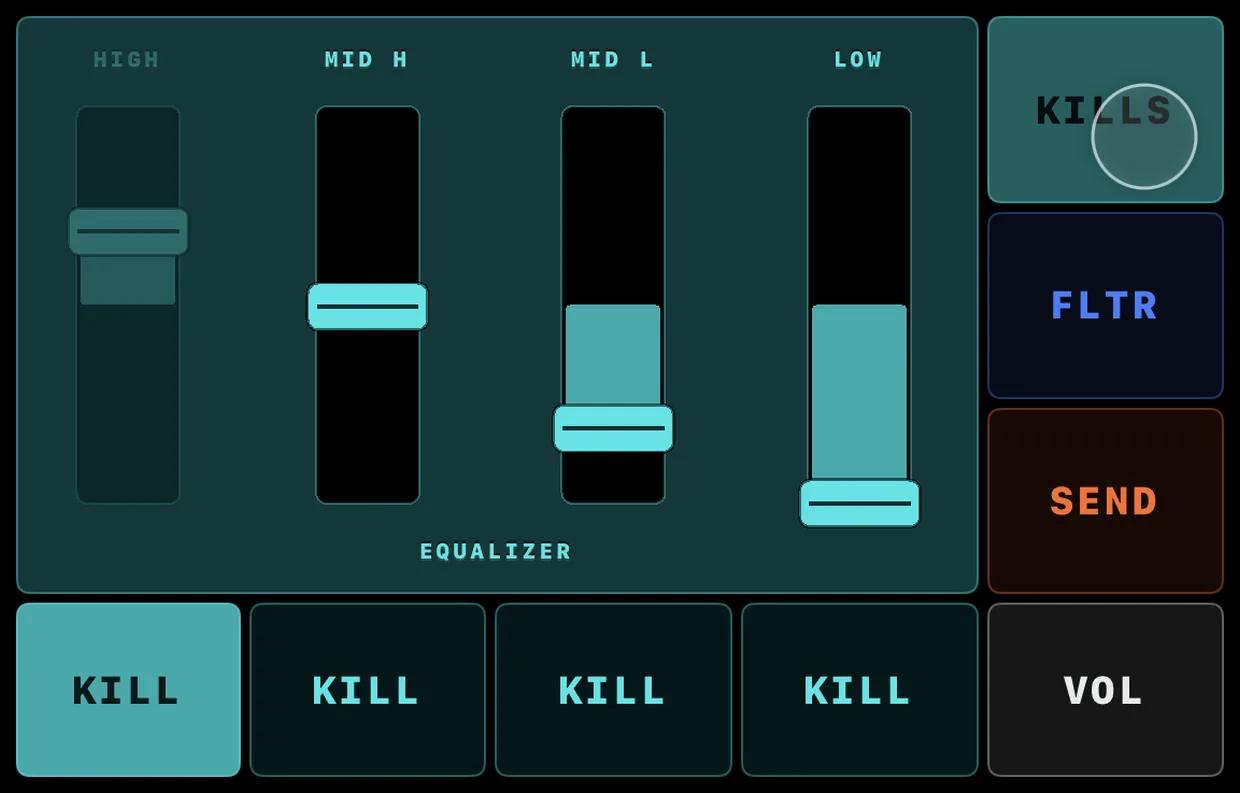
On the deck’s EQ page, hold the deck name button with one finger — the band faders shrink and each band gets its own KILL button: HIGH, MID H, MID L, LOW. Tap a band’s KILL to drop it; tap again to bring it back. LOW is the bass. (You can also flick a band’s EQ fader hard to center to slam it out — see the slam-juggle.)
#Filter & Mixer FX
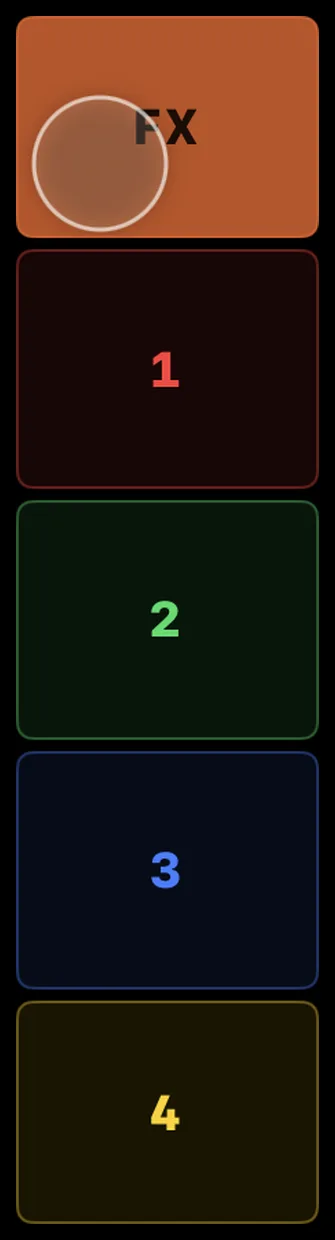
Each channel has a FLTR fader on its right edge — a center-detent filter. Drag it up for a high-pass (thins out the lows), down for a low-pass (cuts the highs); the center is off.
That same fader doubles as the channel’s Mixer FX amount: hold the FX button to reveal the four Mixer-FX slots, tap one to select it, and the fader then drives that effect (its label shows SLOT 1–4). The selected slot’s button reads FLTR — tap it again to go back to the plain filter.
Hold the deck name button to reveal an ON/OFF toggle under the fader that switches the channel’s Mixer FX on or off; with it off, the fader dims.
#Cue a deck in your headphones
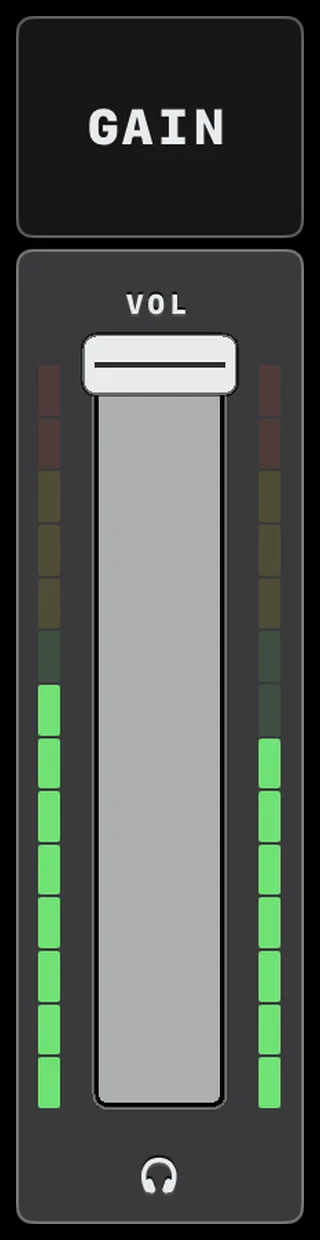
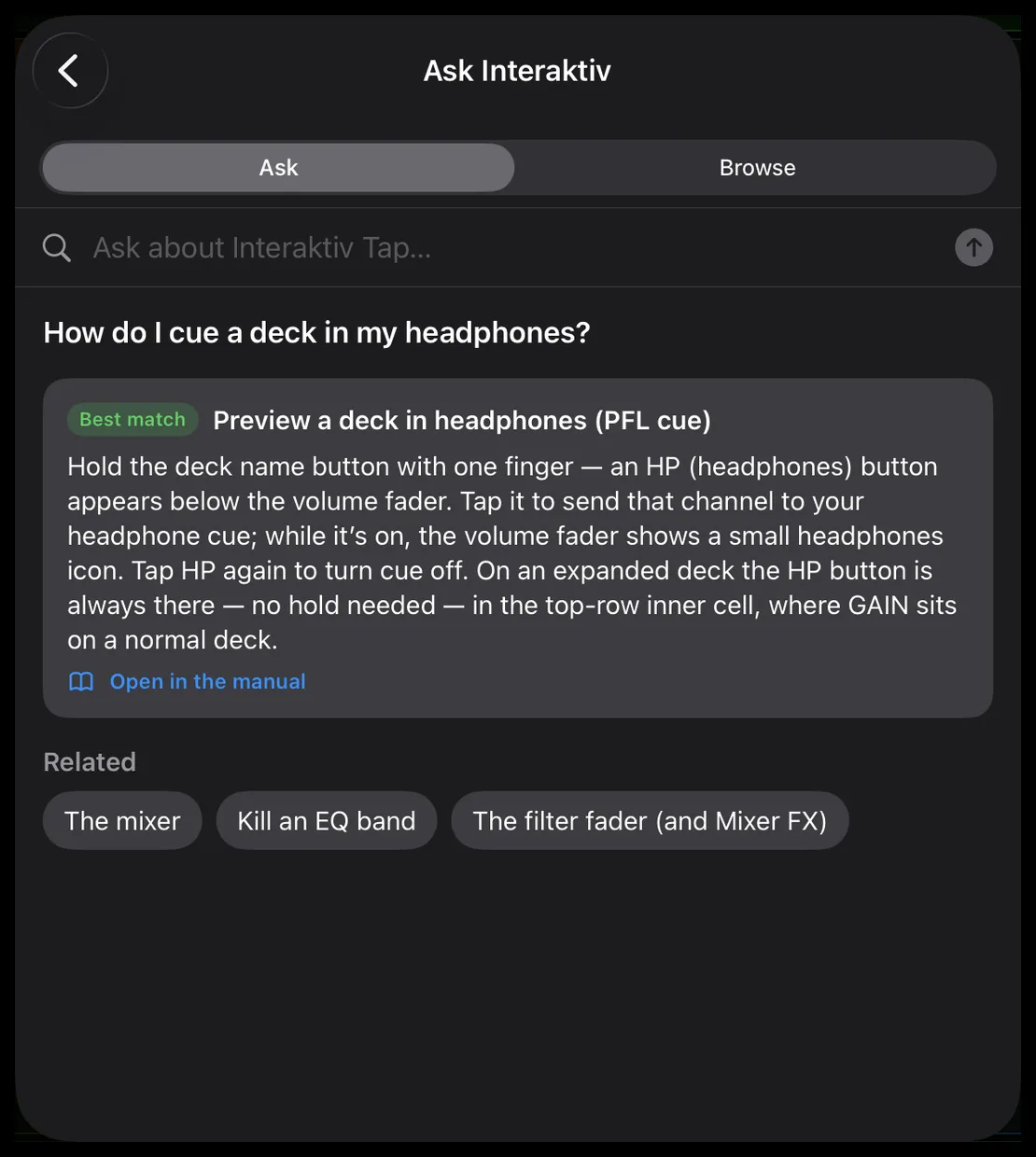
Hold the deck name button with one finger — an HP (headphones) button appears below the volume fader. Tap it to send that channel to your headphone cue; while it’s on, the volume fader shows a small headphones icon. Tap HP again to turn cue off. On an expanded deck the HP button is always there — no hold needed — in the top-row inner cell, where GAIN sits on a normal deck.
#Faders
All faders use relative drag: touch anywhere on the fader and move — you do not have to grab the handle. EQ, filter, and key faders have a strong catch at center, so neutral is easy to find. Double-tap or two-finger tap a fader to reset it, even mid-move.
#The slam-juggle move
On the EQ, filter, and key faders, a fast flick toward the middle latches at exact neutral — so you can slam a band or the filter in and out rhythmically and always land cleanly on center. Pull back out to release it, or lift your finger to cross straight past. A slow, careful move slides through the center instead, so you can still set any value precisely.
#FX units
#The pad, HOLD and routing
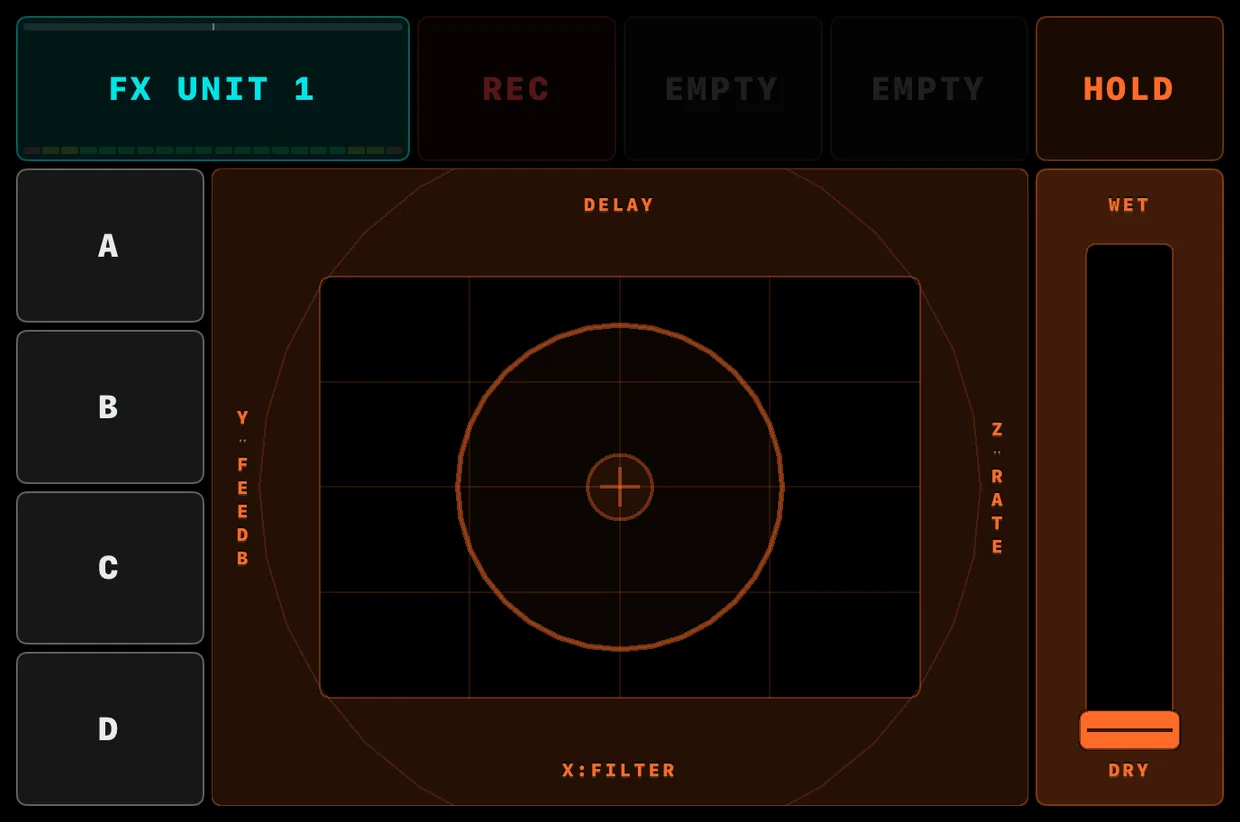
An FX unit centers on a pad that adapts to the effect:
- Three live knobs — an XYZ pad
- The first finger drives X and Y; a second finger’s distance from the first sets the third axis. Put the two fingers down one after the other, not together, so the first finger keeps X and Y.
- Two knobs — an XY pad
- One finger drives X and Y.
- One knob — an X strip
- This includes the single-knob macro effects, marked with an [M] prefix. Where you touch is the value: the knob lands on that spot and follows your finger across the strip.
Small labels name the axes — the X parameter along the bottom edge, Y stacked on the left, Z on the right; axes the effect doesn’t use stay unlabeled. A dry/wet fader sets the mix.
The effect itself is touch-activated, Kaoss Pad style: it switches on the moment a finger lands on the pad and off when the last finger lifts — the pad’s crosshair and markers glow while the effect is on and dim while it’s off. To keep it running hands-free, tap HOLD (beside the pad): while HOLD is lit every release freezes the effect right where you left it, and tapping HOLD again switches it off. A playing gesture loop also keeps the effect on — stop the loop to switch it off (while a loop plays, HOLD’s place reads REV; the loop is already holding for you).
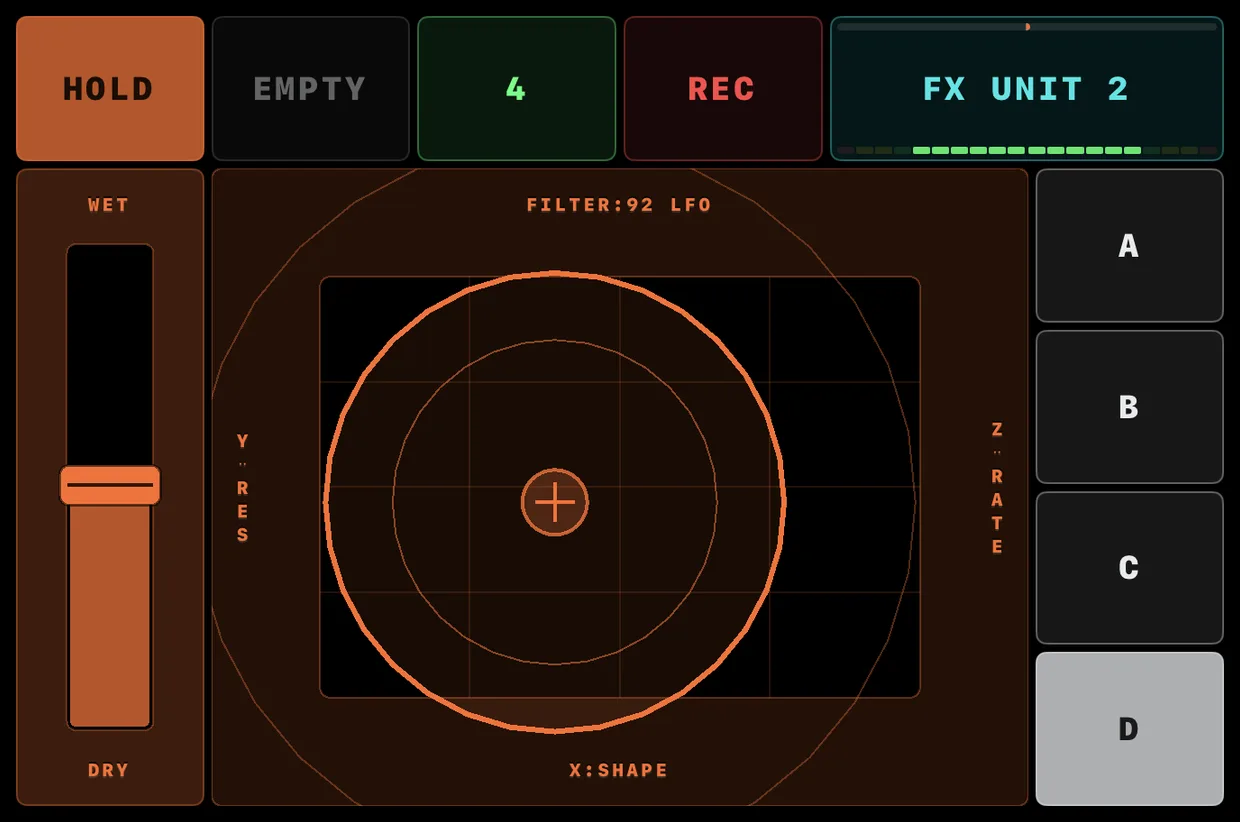
Switching the unit off on the laptop or another controller wins, and the app never answers back: a HOLD latch clears, a playing gesture loop stops at once, and a finger on the pad is let go — lift and touch again to play the effect. Switching it on from the laptop shows up here as a HOLD latch, so the app always shows why an effect is running — tap HOLD to switch it off.
Hold the FX UNIT button with one finger to choose the effect: the A–D routing column becomes four — PREV, NEXT, SAVE and LOAD, one cell each. PREV and NEXT step through the unit’s list, wrapping at the ends; the on-screen effect name matches Traktor’s. Switching keeps your routing and, if the effect is on, swaps the sound live — like turning a hardware unit’s program knob; the unit stays in Single mode so every effect gets its full three-knob layout. If Traktor holds the new effect switched off, the unit goes off with it — a HOLD latch clears, and a playing gesture loop stops. Selecting No Effect parks the unit — the pad, dry/wet, and rec row dim and ignore touch until an effect is chosen; PREV and NEXT stay live.
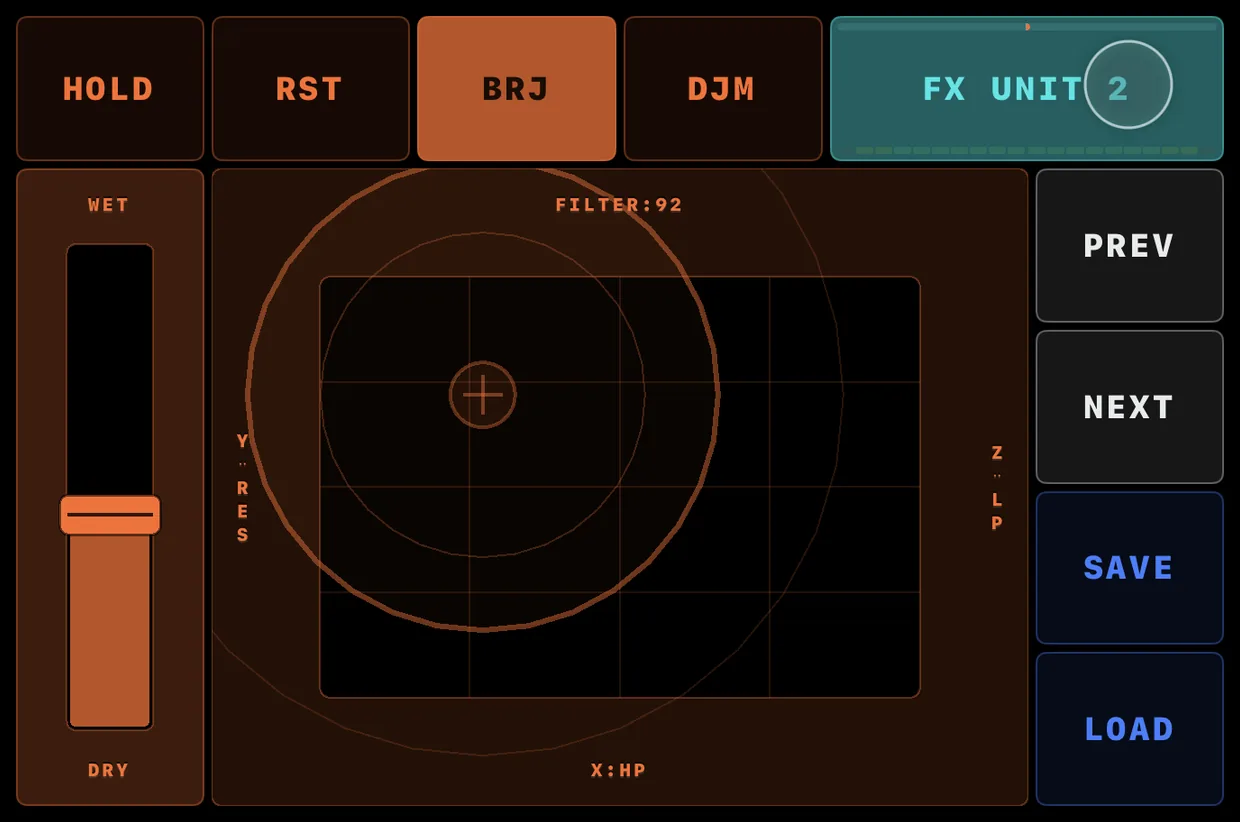
The same FX UNIT hold also swaps the rec row for the effect’s own buttons: RST recalls the effect’s stored snapshot — your saved settings come back — up to two more effect buttons appear (a dimmed – means the effect has none). SAVE and LOAD sit under PREV and NEXT in the routing column: SAVE stores the unit’s current settings, LOAD brings them back — which is the only way back for a GROUP, since a group has no RST. Both dim when the unit has no effect. The buttons stay in step with Traktor.
Four routing buttons choose which decks — A, B, C, D — the unit is applied to; they only pick the destination, the pad and HOLD decide when the effect is actually on. Flip an FX unit’s quadrant to a deck and the unit keeps running — the deck’s name button shows that unit’s send routing (the A–D cells) and rings green while its recorded automation is still playing; the routed cells turn amber while HOLD keeps the effect latched, so a glance says the effect below is still on.
#Curate an FX unit’s effects
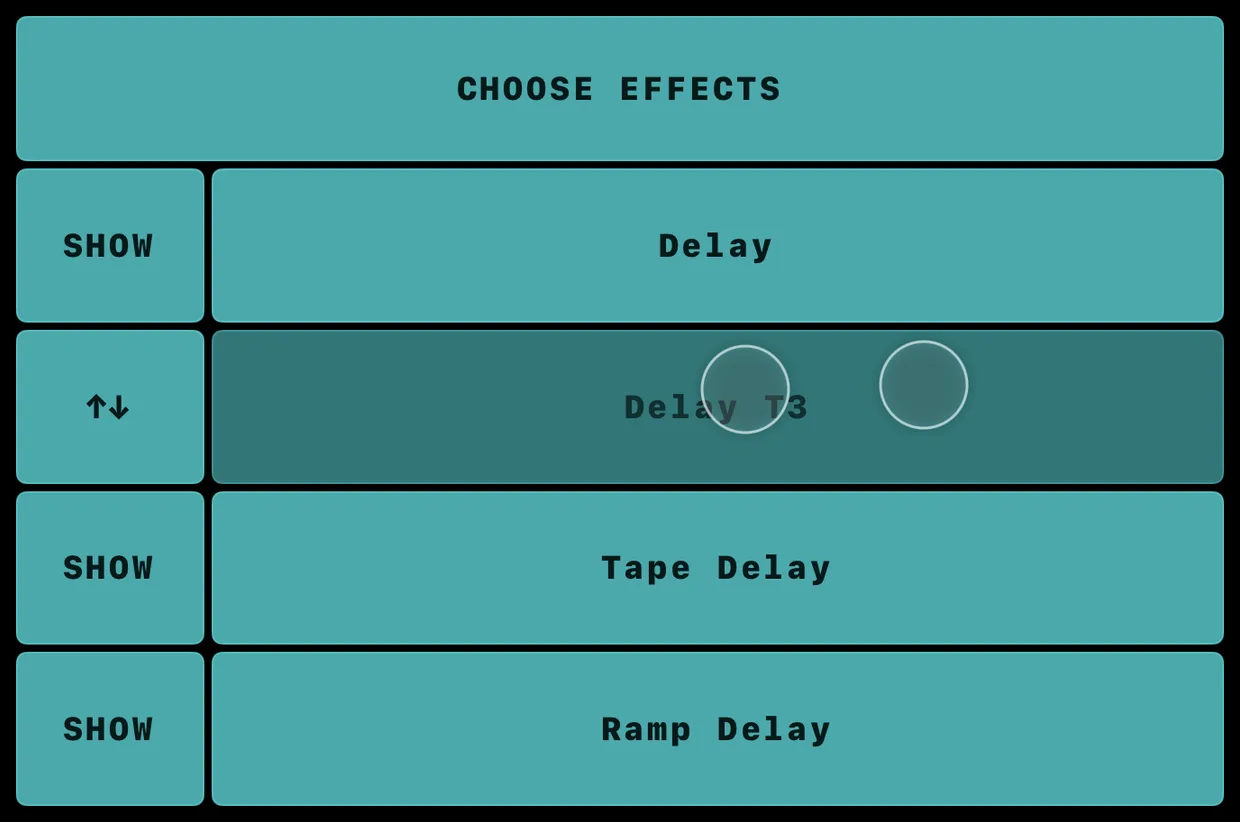
Each FX unit can carry its own short list of effects, so PREV and NEXT step only through the ones you want. Two-finger hold the FX UNIT button to open CHOOSE EFFECTS; two-finger tap its header to close. Your choices are per unit and are remembered between sessions.
In the list:
- SHOW / HIDE
- Each row has a SHOW / HIDE toggle and the effect name; set an effect to HIDE to skip it in that unit’s PREV/NEXT cycle — it stays available, just out of that unit’s list. A unit always keeps at least one effect shown, so the last SHOW toggle won’t turn off.
- Scroll
- Drag the list with one finger to scroll it, a row at a time. To cross the whole catalog, hold your finger at the top or bottom edge of the list and it keeps scrolling on its own, faster the longer you hold.
- Reorder
- Drag with two fingers to move an effect up or down the order — the effect you are moving swaps its SHOW / HIDE button for a drag handle, and the same edge-hold carries the list along under it.
#Record a gesture loop
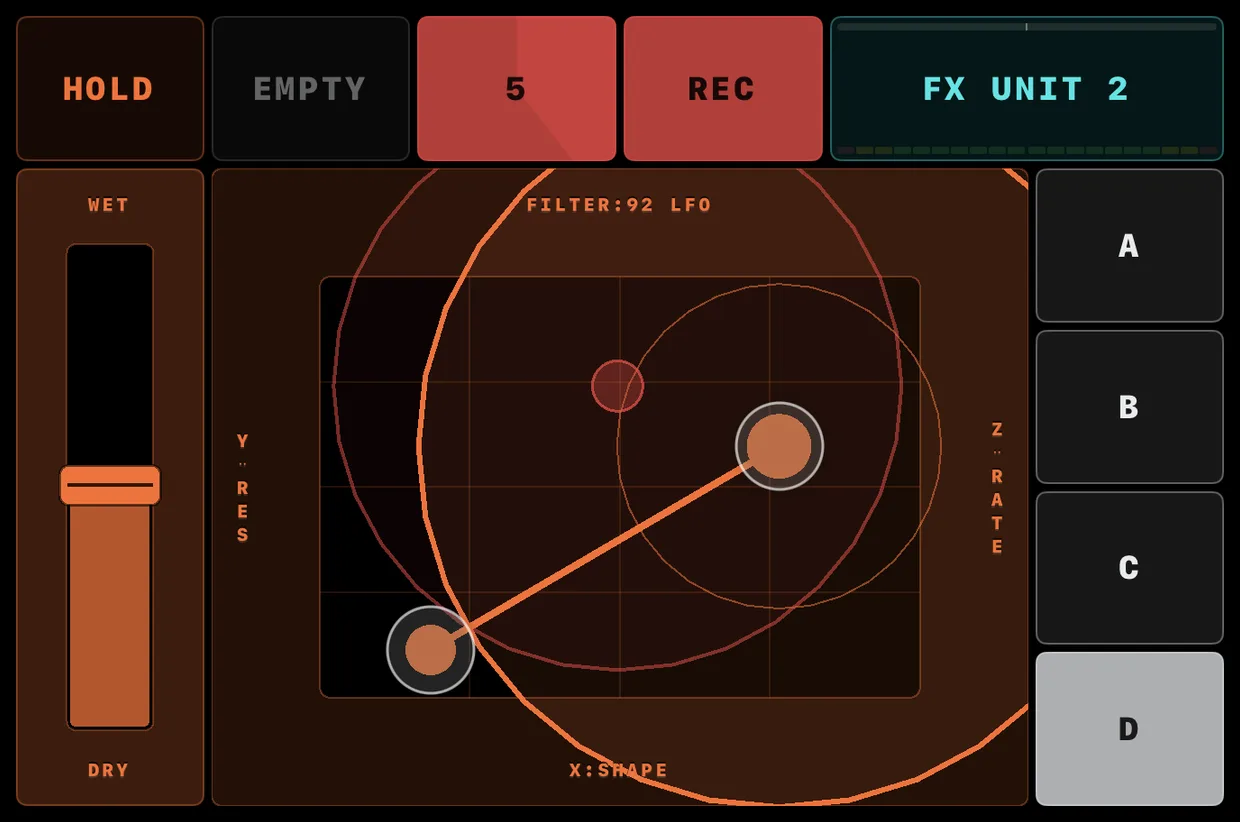
Each FX unit can record what you do on the pad as a loop, into one of two slots — each reads EMPTY until it holds a loop:
- Tap REC to arm and pick a slot.
- Touch the pad — recording starts the moment you touch (REC disarms). A marker shows where on the pad you began, so you can return to it before lifting for a seamless loop. As you record, the slot fills once per beat — the beat grid to play against.
- Lift your finger. It captures in beats, so the loop length snaps to the nearest beat — quantized, always in sync — and the loop starts the instant you release.
While a loop is playing, touch the pad and a dimmed green ‘ghost’ marker shows where the recorded loop is driving it — your finger takes over, so you can ride the loop or rejoin it; lift off and the loop drives the pad again.
- Slot taps
- Beat-quantized both ways: tap a loaded slot and the loop starts on the next beat; tap the playing slot and it stops on the next beat, ending exactly on the value the loop has at that beat. The slot blinks while the stop is queued, and tapping it again cancels.
- REV
- While a loop plays, the HOLD button reads REV — tap it and the loop runs backward from the next beat, straight from wherever it is, still locked to the grid. REV stays lit while reversed, and tapping again turns it forward the same way.
- SIZE
- Hold SIZE to halve or double a playing loop’s length — the loop keeps playing from the same point of your gesture, just twice as slow or fast, so nothing jumps.
The recorder follows the incoming clock, so start Traktor’s clock first. Without it the rec row is dimmed, and while your finger rests on it the header’s SYNC button pulses to point you there.
#The header
#The Loop Recorder

To record audio, use the Loop Recorder in the header: tap REC to capture a phrase, then PLAY to loop it back, and blend it into the mix with the DRY/WET fader. Hold SIZE and tap the smaller or larger length beside it — 4, 8, 16, or 32 beats; changing the length clears the take, so choose it before you record. The UN/RE button undoes or redoes the last take, and reads DEL while the recorder is stopped — tap it to clear the take. (This loops audio, unlike the FX gesture recorder, which loops a pad move.)
#FREEZE & lock
FREEZE lets you play freely and snap back. It captures your performance moves — faders, EQ, filter, key, loop, PLAY, the effect chosen on each FX unit and each deck’s Mixer FX, HOLD, the gesture loops and the Remix cells you launch — but not the master tempo, hot cues, or the Loop Recorder’s size and recording, which stay as they are. A held loop roll is the same thing for one deck: while it rolls, the deck is frozen, and it comes back when the roll ends.
- Hold with one finger
- Snapshots the current sound. Change anything, then release to return to where you were.
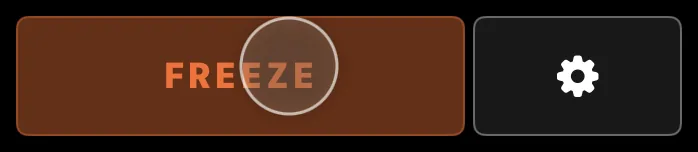
Hold FREEZE with one finger — the ring is the finger. Change anything, release, and the sound snaps back. - Two-finger tap
- Saves a snapshot you can come back to hands-free — the button becomes RESET.
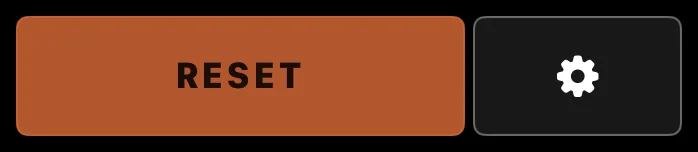
Latched with a two-finger tap: the button reads RESET, and the snapshot waits for you hands-free. - Two-finger press-and-hold (about a second)
- Locks the app so you can wipe or clean the screen without anything responding, while the music keeps playing. Two-finger tap again to unlock.
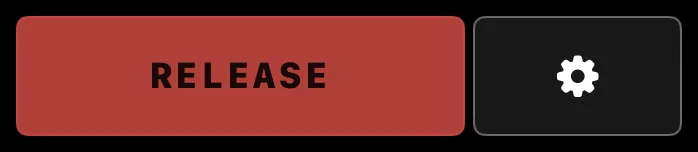
Locked: the screen ignores touch while the music plays on, and the button reads RELEASE — two-finger tap to unlock.
#Staying aware
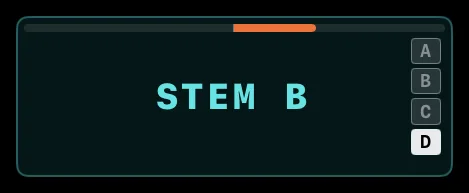
The header keeps you informed at a glance: the live tempo, channel and FX meters, and a small performance readout so you can see the app is healthy through a long set.
- Meters
- Pre-fader and per deck: twin LED strips beside each volume fader show that deck’s left and right level as Traktor hears it before the fader — so a cued track stays visible even with its fader all the way down. They run green, turn yellow as the signal gets hot, and red at the top. Each FX UNIT button carries the same left/right strip along its bottom edge, and a collapsed deck’s strip keeps its meters.
- Phase bar
- Along the top edge of every deck name button and FX UNIT button — and of a collapsed quadrant’s strip — runs a thin phase bar, Traktor’s own phase meter: centred when the deck is in phase with the tempo master, a bar to one side when it has drifted. It shows only while the deck plays; Live Input decks have no track, so no bar.
- NOT CONNECTED
- Beside BPM, in silver: the iPad has no MIDI link to a computer — no cable, the iPad not yet enabled in the Mac’s Audio MIDI Setup, or Interaktiv Bridge not running on Windows. Faders and pads still move; buttons wait for Traktor.
- NO TRAKTOR
- The link is up but Traktor isn’t answering — not open, its mapping not imported, or its ports not pointing at the iPad. Silver when Traktor has never answered this run; amber when it answered earlier and then stopped — Traktor quit, or its ports moved.
- NOT SYNCED
- Amber: Traktor answers, but its last state dump came back short — nearly always a mapping from another build. The app asks Traktor for its state by itself whenever the link comes back or the app returns to the foreground, and Traktor answers in full within a second, so the header normally says nothing here; if NOT SYNCED stays, run the merge again — export, merge, import.
There is nothing to tap. Nothing hides what is going on.
#Master tempo & sync
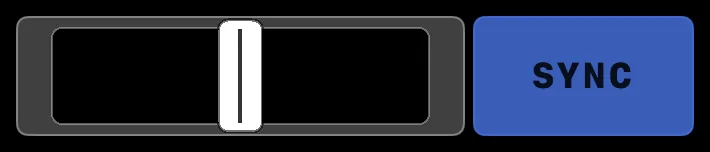
The header carries the set’s master controls. The master tempo strip bends the overall tempo — drag or tap it to nudge Traktor’s clock up or down, and it snaps back to centre when you let go. Touching the strip also puts Traktor’s own clock in charge of the tempo — Auto Master off, the Master Tempo Selector on Clock — so a bend always lands, whatever Traktor was set to.
Beside it, the SYNC button sends Traktor’s MIDI clock, so loops, the gesture recorder, and the Loop Recorder run in time — it re-fires the clock even if it was already on, so switch SYNC on before you record. This is the master clock, separate from each deck’s own SYNC.
Catching up to whatever is already loaded needs no tap: as soon as the iPad and Traktor are connected the app asks Traktor for its current state by itself — effect names, hot-cue colors, loop sizes, and the rest of the two-way read-outs settle into place — and beside BPM the header names anything in the way — NOT CONNECTED, NO TRAKTOR, or an amber NOT SYNCED while something is still missing.
#Settings
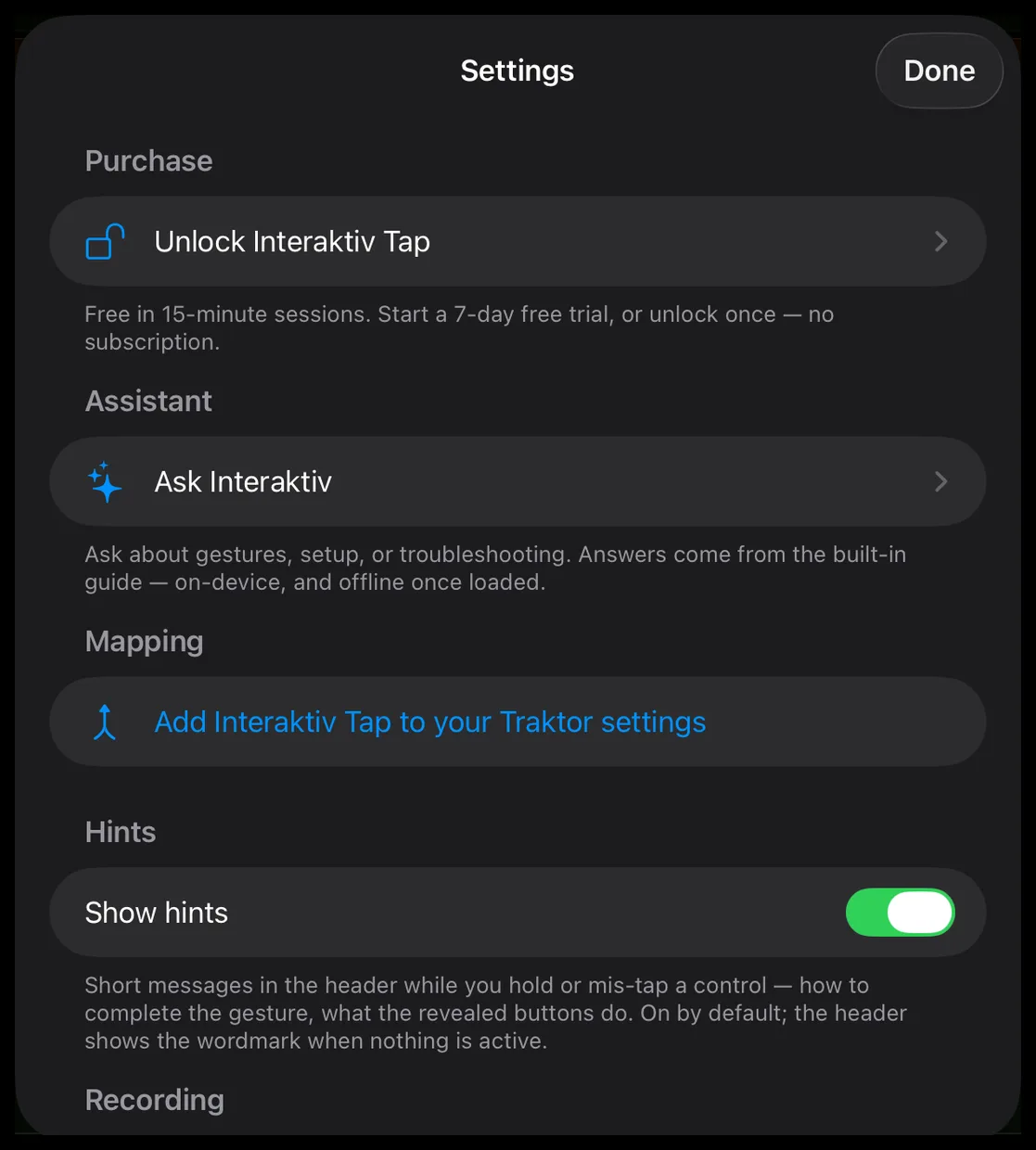
Open Settings from the gear in the top-right corner. So a stray tap can never open it mid-performance, it opens on a deliberate one-second press, not a quick tap — while you hold, a ring fills on the gear and the header says to keep holding.
Settings holds the Traktor mapping. Its top row says where you stand — Waiting for Traktor; Traktor is live — mapping up to date; or Traktor is live — but its mapping is from another build, naming the build Traktor holds and the one this app needs. The Setup row holds the connection steps, and Add Interaktiv Tap to your Traktor settings takes your exported Traktor file — dropped on the page at the address it shows, or picked from Files — folds the mapping in, and hands it straight back. The full steps are under Get started; on first launch the setup wizard walks you through them, and it returns on every launch until setup is done. Do this again after every app update, so Traktor’s mapping and effect list match the app — and if you forget, the app opens this sheet once by itself when Traktor answers with a mapping from another build. Once Traktor answers with the new mapping, the Merged panel goes away — the import is done and nothing is left to do.
The other rows:
- Purchase
- Unlock Interaktiv Tap, start the 7-day trial, or Restore Purchase on a new device. The unlock is one-time — no subscription.
- Ask Interaktiv
- Ask about gestures, setup, or troubleshooting. Answers come from the built-in guide — on-device, and offline once loaded — and each one can open its section in the manual.
- Text size
- A slider that enlarges the text in Settings and the in-app manual; the performance surface stays fixed.
- Show hints
- Drives the header’s status line — gesture reminders and hold-state names while you hold or mis-tap a control. On by default; see Reading the screen.
- Show touch points
- Draws a soft ring under each fingertip — handy for screen recordings and screencasts. Off by default.
- Show diagnostics
- Adds frame-rate, hitch-time and memory readouts to the header beside the BPM — for checking a rig, not for playing. Off by default; the BPM always shows.
- Rate Interaktiv Tap
- Opens the App Store’s review page. The app may also ask for a rating by itself, at most once per version — after a re-merge that brought Traktor’s mapping up to date, or when Settings opens — never while something is playing, and never in demo sessions.
#FAQ
#Do I need Traktor?
Yes. Interaktiv Tap plays Traktor Pro 3 or 4.
#Can I open it without Traktor connected?
Yes — open it and explore the surface. Most controls only light up and move once Traktor answers, because the app shows Traktor’s state rather than its own. Plug in to play.
#Does it work wirelessly?
It runs over a network, and we have used it — but we do not ship it, so the answer for you today is no. Parts of the MIDI implementation are timing-sensitive: the gestures you record and loop have to land on the beat, and network jitter quietly ruins exactly the feature the instrument is built around. It would behave in your kitchen and fail in a room with three hundred phones in it. So the requirement is one USB cable — unglamorous, and predictable on the night it matters.
#Does it need internet at the gig?
No. Nothing phones home, there is no account, and the unlock is checked on the iPad itself. On a Mac the settings page only needs the iPad and the Mac on the same local network — any phone’s hotspot makes one, with nothing behind it — or AirDrop the file, which joins no network and needs no internet — it links the two devices directly, with Wi-Fi and Bluetooth switched on at both ends. On Windows, Interaktiv Bridge carries the page over the USB cable and needs no network of any kind. A festival with zero reception is fine. You need the internet once, at home: to install the app, to buy it or start the trial, and on Windows to install the bridge and Apple Devices — never on stage.
#Why USB and not wireless?
USB gives a rock-solid, low-latency connection — exactly what you want on stage, where timing matters and a dropped signal mid-set isn't an option.
#Does it replace my controller?
No. The mapping installs as its own device in Traktor’s Controller Manager, so your S4, X1 or hand-built mappings stay exactly as they are and everything can be connected at the same time. FREEZE snapshots Traktor itself, so restoring also brings back what your other controllers set — for everything FREEZE captures.
#Does everything work on Traktor Pro 3?
Yes. Everything Interaktiv Tap plays behaves the same on Pro 3 and Pro 4 — the full effect list, all four deck types, and the settings merge. Nothing on the surface is greyed out on 3.
#Does it work with Traktor Play?
Not today. Interaktiv Tap connects through its own MIDI mapping, and Traktor Play only loads Native Instruments’ built-in mappings for the controllers it supports; loading a custom mapping is a Traktor Pro feature. Native Instruments lets you upgrade from Play to Pro 4 and pay only the difference.
#Does it work on Windows?
Yes. Windows needs one small free app from us, Interaktiv Bridge, to carry MIDI over the USB cable; macOS has that built in, and Apple never made it for Windows. The bridge is free on the Microsoft Store, needs an Intel or AMD PC with Windows 11 25H2 or newer and the free Apple Devices app (or iTunes), and uses no network at all once it is installed. Details at interaktivaudio.com/bridge. Everything else — the app, the mapping, the settings merge — is identical on both; the bridge’s tray menu even opens the settings-merge page on the PC for you, straight over the cable.
#Is the Windows bridge IDAM for Windows?
Close, with honest limits. On a Mac the single-cable iPad connection is built in — Apple’s Audio MIDI Setup, the feature called Inter-Device Audio & MIDI (IDAM), carries audio and MIDI the moment you press Enable. Windows has no IDAM. Interaktiv Bridge fills the MIDI half of that gap for Interaktiv Tap: one USB cable, no network, and the iPad appears as a normal Windows MIDI port. The audio half it doesn’t attempt — IDAM’s audio is Apple’s own and exists only on macOS, so no Windows tool, ours included, brings the iPad’s sound over the cable.
#I have never opened Traktor’s settings. Can I do this myself?
Yes, and you never build a mapping by hand. In Traktor, Preferences → Export writes a file of your own settings. The app then shows you a web address: open it in a browser on the same computer and drop that file onto the page. The app folds its mapping into your settings and the merged file downloads straight back. Then Preferences → Import that file, keeping every box ticked. Nothing is emailed and nothing is typed. It takes about two minutes the first time.
#Which cable do I need?
Whatever cable came with your iPad — Lightning or USB-C — into the computer, or into a hub that is plugged into it. No camera adapter needed; whether the iPad charges through a hub depends on the hub and the cable.
#Does the iPad stay charged during a set?
It charges over the same USB cable that carries the MIDI.
#Can I beatmatch by ear? Is there a tempo fader?
There is a master tempo fader in the header — the surface is built around Traktor’s sync, so you ride the master tempo and nudge a deck’s phase with Tempo Bend. Individual deck tempo faders are not on the surface.
#Anything to set on the iPad before a gig?
Turn on Do Not Disturb or a Focus so notifications don’t land mid-set. The app keeps the screen awake while you play, so there is nothing else to change.
#How much latency does it add?
Effectively none — the cable leg is about a millisecond. On Windows we timed the whole path, app to Traktor: typically 1.1 ms, and under 2 ms in 99 cases out of 100, nothing lost — the conditions and the record are on the bridge page. A Mac carries the same USB frames. The iPad and the cable are not where any time goes. What you hear is Traktor’s own audio latency at your buffer size, which Traktor shows you in Preferences — around 20 ms at a 256-sample buffer — and that is the same for any controller you plug in.
#Why does a fader on the iPad sometimes settle a moment after Traktor?
None of that delay is the cable: USB carries MIDI in 1 ms frames (125 µs on high speed), so the leg out and back measures a millisecond or two. It is Traktor, which reports its state back on a timer — about every 18 ms — rather than answering each message as it arrives. The round trip lands around 28 ms at a 256-sample buffer and grows with your buffer while the timer stays put. The delay is the screen catching up, never the sound: it affects the controls Traktor drives — meters, values you did not touch. What you play is not waiting on it.
#Can I change the layout?
Not as a supported feature, and that is deliberate. Interaktiv Tap ships tuned, the way an instrument does — a CDJ or an F1 arrives the way it arrives, and the two-way feedback here depends on the mapping being designed as a whole. If you would rather build your own surface, TouchOSC is very good at exactly that; it is a different craft. If something here is missing or in the wrong place, tell us — feature requests are welcome.
#How much does it cost?
Interaktiv Tap is free to download and free to play in 15-minute demo sessions. Unlocking everything is a one-time purchase — $14.99 in the US, shown in your own currency on the App Store. There is also a 7-day free trial of everything. No subscription.
#Is it a subscription?
No. One-time purchase — buy once, own it.
#What happens if you stop developing it?
The app keeps working — it’s a one-time unlock with no server behind it, and the mapping it ships is a plain Traktor .tsi you keep. There is no account to expire and nothing that phones home to check.
#Is there a free trial?
Yes — a 7-day free trial of everything, offered when a demo session ends and any time from Settings → Purchase. Even without it, the app is free to play in 15-minute demo sessions; one purchase removes the limit.
#What happens when the trial ends?
The app switches to demo sessions: everything still works, and a session pauses after 15 minutes. Relaunch the app to start a new one, or unlock once to remove the limit.
#I bought Interaktiv Tap when it was a paid app — do I pay again?
No. Your original purchase covers everything in version 1. The app unlocks automatically from your App Store receipt; if it doesn’t show at once, relaunch while online or tap Restore Purchase.
#Which iPads work?
Any iPad that runs iPadOS 18 or later. By model: iPad 7th generation (2019) and later; iPad mini 5th generation (2019) and later; iPad Air 3rd generation (2019) and later, in both the 11-inch and 13-inch sizes; iPad Pro 11-inch, every generation; and iPad Pro 12.9-inch 3rd generation (2018) and later, including the 13-inch. Older ones cannot reach iPadOS 18 — that rules out the iPad 6th generation and earlier, the iPad mini 4 and earlier, the iPad Air 1st and 2nd, the iPad Pro 9.7-inch and 10.5-inch, and the first two 12.9-inch Pros. Not sure which you have? Settings → General → About shows the model name.
#Does it run on iPhone or Mac?
Not iPhone — the layout needs an iPad-sized screen. Mac, yes: on Apple Silicon it installs from the App Store as an iPad app, and it can even control Traktor on the same machine — in Traktor’s Controller Manager, set the device’s In-Port to RTP Session 1 (the Mac’s network MIDI session — pick that specific port, not All Ports). Treat that as exploration, not performance: latency is higher than over USB, and macOS gives you one pointer — even an attached touchscreen acts as a mouse, one finger at a time. The instrument is an iPad and one USB cable.
#Does it run on Android?
No — Interaktiv Tap is an iPad app.
#How do I get the Traktor mapping?
Through your own Traktor settings file. Export it from Traktor with every box ticked, open the address the app shows in your computer’s browser, and drop the file on that page — the merged copy downloads straight back with the mapping folded in. Import it in Traktor, every box ticked. (On a Mac, AirDropping the file to the app works too; on Windows, the Interaktiv Bridge tray menu opens the same page over the USB cable.) Your other controllers and preferences survive. Repeat after every app update. Each computer running Traktor has its own settings file, so run the merge once per computer.
#What does it send?
Standard MIDI — CC and notes.
#Can I load tracks or samples in the app?
Not yet. Browsing and loading stay in Traktor today — you load tracks and build Remix sets there, and the iPad fires the cues, loops, and cells that are already there.
#Are sample packs available?
Sample packs for Traktor Remix Decks are coming soon.
#Who made it?
INTERAKTIV AUDIO LIMITED — a two-person studio: Andrey Koppel (software) and Pierantonio Gualtieri (sound).
#Does the app collect my data?
No. Interaktiv Tap runs entirely on your iPad — no account, no analytics, no tracking.
#Can I get a refund?
Refunds for App Store purchases are handled by Apple, through your purchase history.
#Can my family use my purchase?
Yes — one purchase works on all your own devices and shares with your family at no extra cost via Apple’s Family Sharing. The 7-day trial itself is per person.
#Troubleshooting
#Why don’t the buttons light up when I tap them?
A button lights when Traktor confirms the change, about 30 ms after the tap — the iPad shows only what Traktor holds, never a guess. With no Traktor connected, nothing lights: taps are sent, but there is nothing to answer. Check the connection first; if Traktor is connected and a button stays dark, Traktor refused the command (PLAY at the end of a track, for example) or the mapping is stale — re-merge it from Settings.
#Why doesn’t Traktor respond to the iPad?
Check the USB cable, confirm the iPad is enabled in Audio MIDI Setup (on Windows: Interaktiv Bridge’s window names anything missing, and its dot is green only once Traktor answers), confirm the merged settings file is imported (Preferences → Import, every box ticked) so Interaktiv Tap appears in Controller Manager, and check that its In-Port and Out-Port are set to iPad — the import usually sets them for you. If Traktor’s audio device is missing or changed (Preferences → Audio Setup), Traktor quietly ignores all MIDI — pick a working device and it comes back. Note the app only counts Traktor as connected once its own mapping answers, so MIDI from other controllers won’t light it up.
#My iPad faders move but nothing happens in Traktor — why?
Open Traktor → Preferences → Controller Manager and confirm the mapping’s device and ports match your iPad.
#Why doesn’t the iPad appear as a MIDI device?
On a Mac, open Audio MIDI Setup, find the iPad, and click Enable. On Windows, run Interaktiv Bridge: if its window is red it names what is in the way (Apple Devices not running or not installed, or Windows’ own MIDI settings) and says what to do about it. The iPad (iPad) port is there from the moment the Windows MIDI service starts, once the bridge has run on that PC — but Traktor reads its ports once at launch, so if it still lists no iPad port, restart Traktor: needed once if Traktor was already open the first time the bridge set up its port on that PC, and whenever the window says Traktor lost its port. If Traktor lists no MIDI ports at all and the window says WINDOWS MIDI NEEDS REPAIR, something changed Windows’ own MIDI settings: the window’s button opens Microsoft’s guide to the fix. Importing the merged file usually sets it as the mapping’s In-Port and Out-Port by itself — check Traktor’s Controller Manager if not.
#Where is Settings?
The Settings button is the gear in the top-right corner. It opens on a deliberate one-second press, not a quick tap.
#Why is the FX recorder dimmed and won’t record?
The gesture recorder follows the incoming clock. Tap SYNC in the header to start Traktor’s clock, and the recorder becomes active. If nothing arrives, check Traktor → Preferences → External Sync → Enable MIDI Clock — importing the merged settings file switches it on, but a stock Traktor has it off.
#Traktor still shows only two decks after importing — how do I get four?
Check Traktor’s layout menu and pick the “Interaktiv Tap” layout — the merged file adds it as a new four-deck layout rather than changing the layouts you already had. If it isn’t in the list, your export didn’t include its GUI layouts (the app tells you when that happens): either export again with every box ticked and merge that file, or switch decks on yourself under Preferences → Decks → Show Deck C & D (and show the FX panels via the Global Section — Effect 1 / Effect 2).
#My other controller mappings disappeared from Controller Manager — how do I get them back?
Traktor keeps every controller in one block, so importing a file that holds only one mapping leaves only that one. Recover from your own settings backup: import the merged file first, then re-add each other mapping with Controller Manager → Add… → Import from disk…, which adds a device without replacing what’s there. To avoid it in future, always merge (the app folds its mapping into your own export, keeping your other gear) and tick every box on export and import.
#The app says it couldn’t merge my Traktor file — what now?
Export again from Traktor with every box ticked (Preferences → Export) and merge that file. The app refuses any file it can’t modify safely rather than risk your settings, so the fix is almost always a fresh, complete export. Make sure you’re sending the exported .tsi itself, not a renamed or edited copy.
#The address the app shows won’t open in my browser — why?
That page is served by the app itself, so the setup screen (or Settings → Add Interaktiv Tap to your Traktor settings) must stay open while you use it — and the iPad and computer must share a network: the same Wi-Fi, or the iPad’s Personal Hotspot. On Windows you can skip the address entirely: with Interaktiv Bridge running, its tray menu — Add Interaktiv Tap to your Traktor settings — opens the page over the USB cable, no network needed. No shared network on a Mac? Skip the page: AirDrop the exported file to the iPad and choose Interaktiv Tap, then AirDrop the merged file back.
#Why does the connection keep dropping?
Use a reliable USB cable and keep the iPad awake while you play.
#The iPad shows the wrong effect or hot cues after I connect — how do I fix it?
It catches up by itself: the app asks Traktor for its full state whenever the link comes back, whenever the app returns to the foreground, and whenever a deck changes flavor — and Traktor answers within a second. If the read-outs stay wrong, an amber NOT SYNCED shows beside BPM: the mapping in Traktor is out of date. Run the round trip again — export, merge, import — and it clears.
#After an app update, PREV/NEXT, the FX buttons, or the meters act wrong — why?
The app and the mapping in Traktor must come from the same version. After every app update, run the round trip again: export your settings from Traktor with every box ticked, merge them in the app, and import the merged file back with every box ticked. That refreshes the mappings and the effect list in one step, and the read-outs settle by themselves once Traktor answers. The app notices the mismatch too: it opens the Traktor Settings sheet once, naming the build Traktor holds and the one it needs.
#The surface paused and says the demo session ended — why?
That’s demo mode — the free way to play after the 7-day trial. Sessions pause after 15 minutes; Traktor keeps playing, only the surface takes a break. Relaunch the app to start a new session, or unlock once (Settings → Purchase) to remove the limit.
#The audio is distorted or crackling — is the app causing it?
No — Interaktiv Tap carries no audio at all. It sends MIDI only; every sound comes from Traktor on the computer, and the iPad plays no part in sound quality. Distortion or crackling means the computer’s audio path is struggling: check Traktor’s Preferences → Audio Setup (the right audio device, and a larger latency if it crackles), keep channel and master levels out of the red, and watch the computer’s CPU load.
#Interaktiv Bridge (Windows)
#The bridge's window and tray
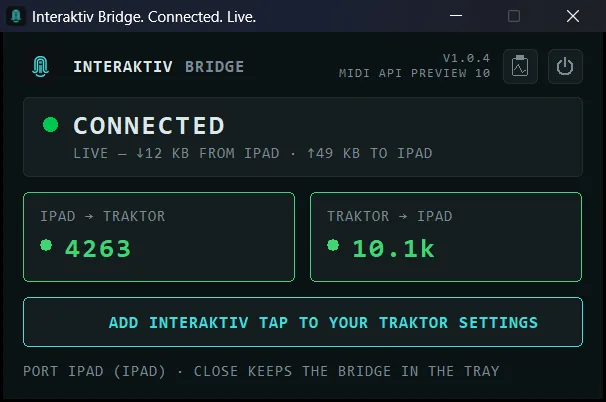
One window, and it always names the one thing between you and Traktor. A coloured dot and a headline say what that is, the line under it states the fact, and when there is something for you to do, a red line at the bottom or a button says what. Green has one meaning: Traktor answered. The bridge asks it a one-message question every second, and green needs an answer within three.
What the window shows while it is connected:
- A live line under the headline, counting the kilobytes that have crossed the cable this session, each way.
- Two tiles, one per direction, counting messages. They light as traffic moves, go dark when the session ends, and shorten large counts.
- A grey bottom line naming the port it serves, and reminding you that closing the window keeps the bridge in the tray. It turns red only when something needs you, and then it is the instruction.
- Top right: the bridge's version, with the preview of Microsoft's Windows MIDI Services API it includes on the line below, then two squares: the clipboard for Copy diagnostics, and at the far right the power symbol, which quits the bridge after asking.
- Buttons that can do something, and no others: ADD INTERAKTIV TAP TO YOUR TRAKTOR SETTINGS once Interaktiv Tap is connected, OPEN MICROSOFT'S GUIDE while one of Windows' own MIDI settings is in the way, and the Apple Devices buttons while Apple Devices is missing or not running.
Closing the window leaves the bridge running in the tray, which is where it lives. Its icon is the Interaktiv mark with a status dot, and the dot's shape carries the state as well as its colour: a plain green disc means nothing to attend to, an amber bar means waiting, a red exclamation means it needs you, and a hollow grey ring means nothing is connected yet, or the bridge is reconnecting. Click it to bring the window back.
Right-click the icon for the same things without the window. The first two rows are the app's name and its current status, then:
- Open Interaktiv Bridge
- Add Interaktiv Tap to your Traktor settings — opens the app's settings screen on the iPad and the same page in your PC's browser, over the cable
- Copy diagnostics
- Quit Interaktiv Bridge
#When the bridge is waiting on Traktor
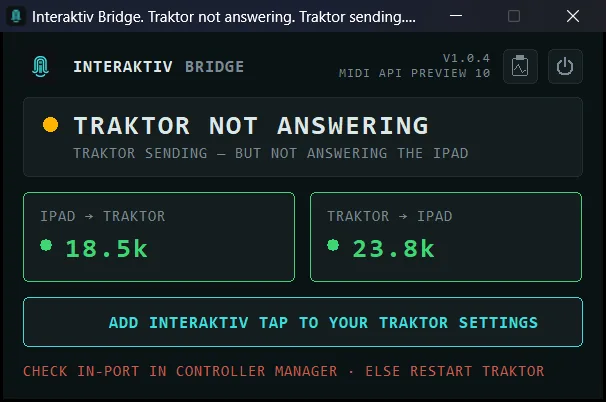
Traktor is open; these say what it is doing with the iPad (iPad) port.
What the window can say, and what to do:
- WAITING FOR MIDI
- Amber. Under it:
Traktor isn’t using the iPad (iPad) port,Traktor lost its iPad (iPad) port — restart Traktor,Traktor connected — waiting for MIDI,waiting for MIDI from Traktor. Traktor is running but not on the port, and the bottom line says CONTROLLER MANAGER · SET BOTH PORTS TO IPAD (IPAD): in Controller Manager, set both In-Port and Out-Port to iPad (iPad). If the line says Traktor lost its port, restart Traktor.Traktor connected — waiting for MIDIis the first seconds after Traktor binds the port, andwaiting for MIDI from Traktormeans Windows has not yet told the bridge which program holds it — nothing to do. - TRAKTOR NOT ANSWERING
- Amber. Under it:
Traktor connected — waiting for MIDI, orTraktor sending — but not answering the iPadwhile Traktor is still sending to the iPad. Update the app’s Traktor settings first if the iPad offers to; then both ports in Controller Manager; then Traktor’s audio device; else restart Traktor. The bottom line names which to start with: CHECK IN-PORT IN CONTROLLER MANAGER · ELSE RESTART TRAKTOR while Traktor is still sending — only its ear is shut — and CHECK TRAKTOR'S AUDIO DEVICE OR PORTS · ELSE RESTART IT when nothing moves either way even after the bridge has rebuilt its own end, where those two causes look the same from outside. The bridge page walks the same three checks in prose: the window says TRAKTOR NOT ANSWERING.
#When the bridge is waiting on Apple Devices
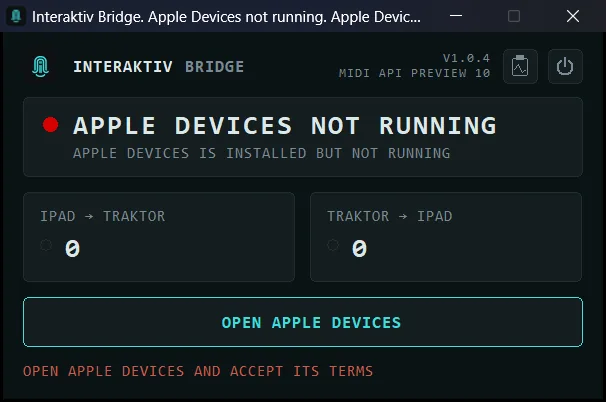
Apple’s free app is what lets Windows see the iPad at all, and its device service has to be running.
What the window can say, and what to do:
- APPLE DEVICES MISSING
- Red. Under it:
Apple Devices isn’t installed. Click GET APPLE DEVICES — it opens the Store page. Install it, then open it once and accept its terms. - APPLE DEVICES NOT RUNNING / ITUNES NOT RUNNING
- Red. Under it:
Apple Devices is installed but not running,iTunes is installed but not running. Click OPEN APPLE DEVICES (or OPEN ITUNES) — opening the app starts its device service, and the window leaves red within seconds. If it stays red, the app has never been opened: open it and accept its terms, as the bottom line says — OPEN APPLE DEVICES AND ACCEPT ITS TERMS (or OPEN ITUNES AND ACCEPT ITS TERMS). - WAITING FOR APPLE DEVICES / WAITING FOR ITUNES
- Amber. Under it:
iPad plugged in — Apple Devices hasn’t seen it yet,iPad plugged in — iTunes hasn’t seen it yet. Windows sees the iPad; Apple’s service does not yet, because it started after the iPad was plugged in — Apple Devices normally starts with Windows, but if its autostart is off (Settings → Apps → Startup) its device service only starts when you open the app. Unplug the iPad and plug it back in once, as the red bottom line says after 15 seconds: UNPLUG THE IPAD AND PLUG IT BACK IN. Under Apple Devices the gap usually closes by itself within seconds; under iTunes it may not, and the re-plug is the sure way out. - WAITING FOR IPAD
- Gray. Under it:
connecting to Apple’s device service…. Shows for a few seconds after you sign in to Windows, while Apple’s service starts — nothing to do.
#When the bridge is waiting on Windows MIDI
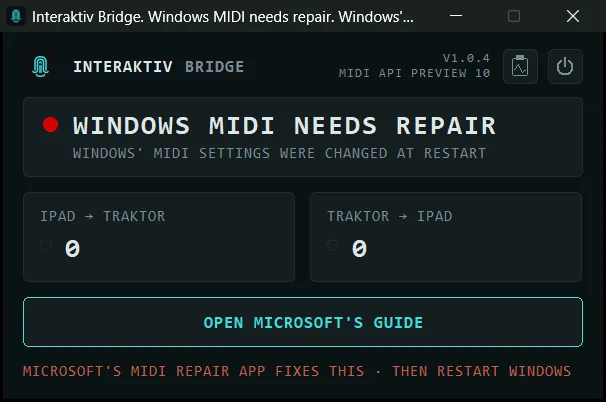
Windows 11’s own MIDI service, which the bridge talks to through a preview of Microsoft’s Windows MIDI Services API, included with the app. There is nothing to install, and the bridge changes no Windows setting: when one of Windows’ own MIDI settings is in the way, the window says which, and its button opens Microsoft’s guide to it.
What the window can say, and what to do:
- WINDOWS TOO OLD
- Red. Under it:
needs Windows 11 25H2 — see Windows Update,Windows 10 unsupported — needs Windows 11 25H2. Update Windows 11 to 25H2 through Windows Update. On Windows 10 there is no path. - LEGACY MIDI MODE IS ON
- Red. Under it:
this PC is set to Windows’ older MIDI system. In that mode Windows cannot give Traktor the bridge’s iPad (iPad) port. The mode is your choice, made in Microsoft’s own tools, and the bridge never changes it; in this mode it also does not start Windows’ MIDI service. The bottom line says INTERAKTIV BRIDGE NEEDS FULL MIDI MODE · SEE MICROSOFT'S GUIDE, and OPEN MICROSOFT'S GUIDE opens Microsoft’s article on changing it. - WINDOWS MIDI UNAVAILABLE
- Red. Under it:
Windows MIDI unavailable — retrying. Nothing at first: Windows’ MIDI service is not answering at all, and the bridge keeps retrying by itself. (A service that only stopped or restarted normally shows RECONNECTING TO MIDI instead.) If it stays red, install any waiting Windows updates and restart Windows, which starts the service again; if that does not clear it, send us Copy diagnostics. - WINDOWS MIDI NEEDS REPAIR
- Red. Under it:
Windows’ MIDI settings were changed at restart,Windows’ MIDI settings changed while running. The settings that hand Traktor’s MIDI to Windows’ MIDI service are not as Windows needs them, so Traktor sees no MIDI ports at all. The bridge only reads them and never writes them. The bottom line says MICROSOFT'S MIDI REPAIR APP FIXES THIS · THEN RESTART WINDOWS, and OPEN MICROSOFT'S GUIDE opens Microsoft’s article on those settings. Microsoft says that app ships in Windows near the end of 2026; until then it is on Microsoft’s GitHub, for developers and technical users. Once they are right, the window leaves red by itself. - MIDI STALLED
- Red. Under it:
MIDI stalled — restart Interaktiv Bridge. The bottom line says QUIT AND START THE BRIDGE AGAIN · ELSE RESTART WINDOWS: quit the bridge and start it again, and if it stalls again, restart Windows. - RECONNECTING TO MIDI
- Gray. Under it:
rebuilding the MIDI port…,reconnecting to Windows MIDI…. Nothing — usually about two seconds, and Traktor’s port is untouched. If Windows’ MIDI service itself stopped or restarted, the bridge notices within two seconds, starts the service again, and the port is back in about ten seconds; if Traktor had the port open, the window then saysTraktor lost its iPad (iPad) port — restart Traktor.
#Starting, quitting and uninstalling the bridge
- It starts with Windows, silently, into the tray — so the port is there before you open Traktor. Turn that off in Settings → Apps → Startup if you would rather start it yourself.
- Opening it again brings the running window to the front. There is only ever one bridge running.
- Closing the window leaves it running; the bottom line says so. Quitting is a separate choice.
- Quit with the power symbol at the top right of the window, or Quit Interaktiv Bridge in the tray menu. Either way it asks first, with Cancel as the default button. While Traktor is playing through the port it also warns what it costs: closing interrupts Traktor's MIDI for about a second, and very occasionally Traktor does not take the port back and has to be restarted. Quit between sets, not during one.
- Uninstalling is Settings → Apps → Interaktiv Bridge → Uninstall, like any other app; the startup entry goes with it, and the bridge installed nothing else. One thing stays: the bridge's pair of MIDI ports, iPad (iPad) and Interaktiv Bridge (internal), which Windows keeps listing harmlessly and a reinstall uses again. Apple Devices and your Traktor settings are never touched.
#Sending us diagnostics from the bridge
When something on the PC will not come right, send us what the bridge knows. Copy diagnostics — the clipboard icon in the window, or the tray menu — puts a plain-text report on the clipboard. Paste it into an email to hello@interaktivaudio.com, with what you were doing and roughly when.
What the report carries:
- The bridge's version, your Windows build, which preview of Microsoft's MIDI API it includes, and which MIDI mode Windows is in
- Whether Windows' MIDI routing is in place, which apps on your PC are using MIDI (by name), and which of them is holding the iPad (iPad) port
- The message counts each way, and how many of the bridge's once-a-second questions Traktor answered
- Which Apple app Windows is using to see the iPad, and how many Apple devices it sees on USB
- Any runs that ended abruptly, the current status, and the tail of the bridge's log
What it does not carry: no serial numbers and nothing that identifies your iPad. The log can include the path of your Windows user folder, which contains your user name. Nothing leaves your PC until you paste it somewhere yourself — the bridge sends nothing on its own.
#About & help
#Ask an AI assistant
Prefer to ask in your own words? Interaktiv Tap publishes a knowledge endpoint for AI assistants that support the Model Context Protocol (MCP). Point your assistant at https://interaktivaudio.com/mcp and ask it anything on this page — a setup step, a gesture, or a compatibility check.
#Who makes Interaktiv Tap
Interaktiv Tap is made by INTERAKTIV AUDIO LIMITED, a small studio based in Hong Kong, built by two people who perform with the tools they make: Andrey Koppel, a software architect, and Pierantonio Gualtieri, a producer and sound engineer.
#Free trial & demo sessions
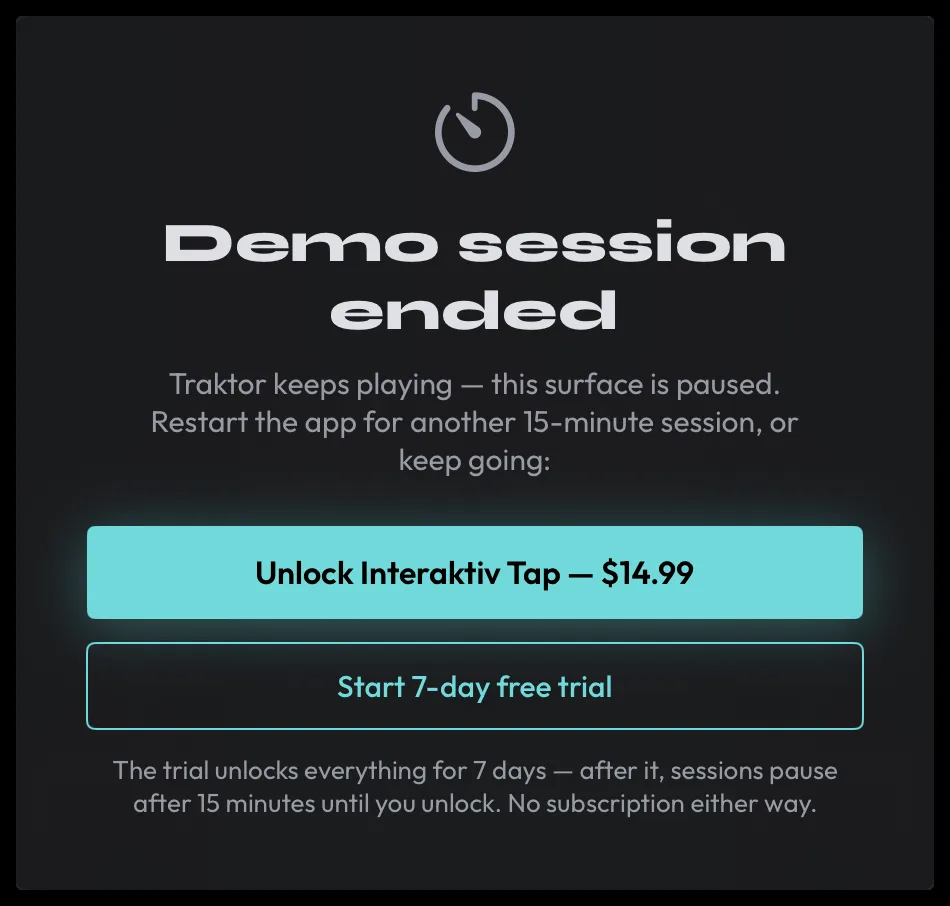
A demo session is the whole instrument, free, for 15 minutes. They run from the moment the app opens — except on your very first run, when they start only after setup is done and Traktor has answered, so setting up never eats into them.
When the 15 minutes are up you get a Demo session ended panel — Traktor keeps playing and only this surface is paused — offering another session, the trial or the unlock. Restart the app and it syncs to Traktor as it opens, so you carry on from where you were. That pause is not App Lock; App Lock is the performance feature that stops the screen responding so you can wipe it mid-set.
For uninterrupted days, start a 7-day free trial of everything — offered the first time you set up, and any time from Settings → Purchase. The trial runs once per Apple ID (the App Store keeps the record, so it survives reinstalls and new devices). One purchase removes the session limit for good.
#Price, purchase, and availability
Version 1 Unlock is a one-time purchase — no subscription — that removes the demo-session limit and includes every update to version 1, up to but not including version 2.0. The App Store shows each region its own price (you see it in the app too). Available on the App Store in 172 countries.
One purchase, all your devices:
- Sign in with the same Apple ID and tap Restore Purchase when you first set up, or any time in Settings → Purchase.
- Family Sharing covers your family group at no extra cost; the trial itself is per person.
- Bought Interaktiv Tap back when it was a paid download? You already own version 1 — the app unlocks automatically from your original App Store receipt (if it doesn’t show at once, relaunch while online).
Refunds are handled by Apple through your App Store purchase history.
#Privacy — what the app collects
Interaktiv Tap runs entirely on your iPad and collects nothing — no account, no sign-in, no analytics, no tracking. It never reads your audio, tracks, or recordings. The full privacy policy, covering website purchases and support, is at interaktivaudio.com/privacy.
#Coming soon
Sample packs for Traktor Remix Decks are coming soon.
#Contact
Questions, bugs, or feedback: hello@interaktivaudio.com