iPad MIDI over USB, on Windows
Ask the internet how to get MIDI from an iPad into a Windows PC and the answer is always the same: a cable can’t do it — use Wi‑Fi and live with the latency. Interaktiv Bridge is the cable answer: a free tray app that carries MIDI from Interaktiv Tap to Traktor Pro over the USB cable. No network of any kind to play, no extra hardware, nothing to pair.
Interaktiv Tap is our iPad instrument for Traktor — free to download, free to play in demo sessions, with a 7-day trial and a one-time unlock. The bridge is its Windows half, and it carries Tap and nothing else: the Windows end is a normal MIDI port, but the iPad end speaks only to this one app. On a Mac you need none of this — macOS carries the same cable itself, and the manual has those steps.
Get Interaktiv Bridge on the Microsoft Store — free, for Windows 11.
It installs like any Store app, sits in the tray and starts with Windows. Nothing to configure — and if Windows is missing the MIDI service it needs, the window offers to install that for you.
“Felice di aver partecipato al vostro progetto.. funziona benissimo.”
“Happy to have taken part in your project.. it works great.”
#Setting it up, once
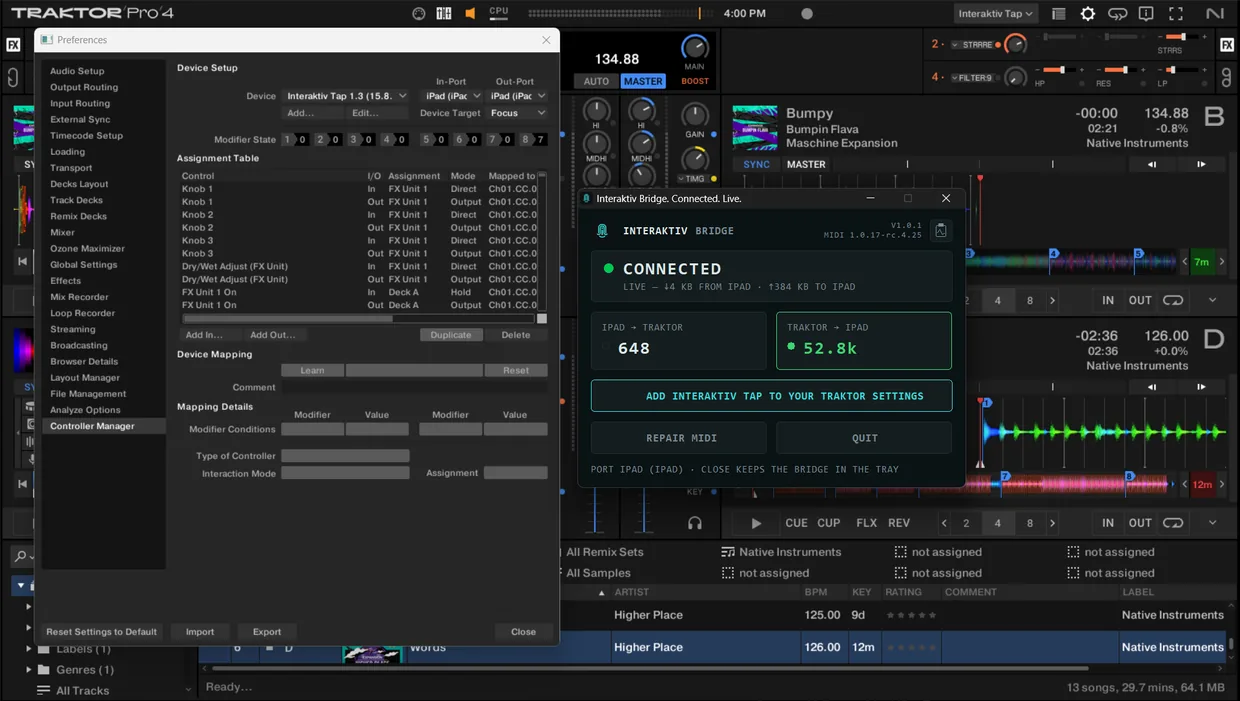
- Install Interaktiv Bridge from the Microsoft Store and open it once. From then on it sits in the tray and starts with Windows. Its window names the one thing in the way, in this order, and offers the button that fixes it — the rest of this list is what it will ask you for.
- Windows MIDI Services — Microsoft’s MIDI runtime. If it isn’t installed, the window says WINDOWS MIDI NOT INSTALLED, and INSTALL MIDI SERVICES downloads it from Microsoft’s own release page and installs it, with one Windows prompt.
- The free Apple Devices app — Windows needs it to see the iPad at all. If it isn’t installed, GET APPLE DEVICES opens its Store page. Once it is, open it once and accept its terms: until then its device service isn’t running, and the window says APPLE DEVICES NOT RUNNING with an OPEN APPLE DEVICES button. iTunes works too.
- Plug the iPad in with a cable that syncs — the one that came with the iPad does; a charge-only cable will not, and the window keeps saying it is waiting. The window goes from WAITING FOR IPAD to WAITING FOR INTERAKTIV TAP. Open the app: it finds the bridge over the cable by itself — nothing to pair — and the two screens agree. The iPad’s header goes from NOT CONNECTED to NO TRAKTOR; the window goes to WAITING FOR MIDI and names what is left: Traktor isn’t running, or it isn’t using the iPad (iPad) port yet.
- Both of those are yours to do: start Traktor, and merge the app’s settings into it. The app walks you through the merge, and the PC can start it for you: in the window and in the tray menu, ADD INTERAKTIV TAP TO YOUR TRAKTOR SETTINGS opens the app’s Traktor settings screen on the iPad, and the same page in your browser. Traktor’s own word for the last step is Import, under Preferences → Controller Manager. With the merged settings loaded, Traktor binds the iPad (iPad) port by itself, and the dot turns green the moment Traktor answers.
Your own Traktor mappings survive the merge. Traktor exports your settings, the app adds its device to that copy, and you import the copy back — your controllers, your hotkeys and your preferences come through untouched. The file Traktor exported for you is a backup either way.
#How it works, under the hood
The bridge talks to Apple’s local device service on one side and to Windows MIDI Services — Microsoft’s new in‑box MIDI stack — on the other. The MIDI port is named iPad (iPad): the same name a Mac gives an iPad, and the name stored inside the Interaktiv Tap mapping. That is why the mapping binds by itself in Traktor’s Controller Manager — no dropdown hunting under stage lights. The port is declared once, inside the Windows MIDI service itself, so it exists from the moment that service starts — before the bridge runs, before Traktor does.
#What you need
- An Intel or AMD PC with Windows 11 24H2 or newer — press
Windows+R, typewinver, and read the line that starts “Version”. An older Windows 11 gets there through Windows Update; Windows 10 has no path, and PCs with an ARM processor are not supported. The FAQ says why. - The free Apple Devices app from the Microsoft Store, opened once — it installs no Windows service, just two processes that run while you are signed in. iTunes works too, though it is slower to notice an iPad that was already plugged in.
- Traktor Pro 3 or 4 — tested with both.
- An iPad running Interaktiv Tap with its Traktor settings merged in, and one USB cable that syncs.
#Wired, not Wi‑Fi — and no network to play
Most ways to do this — rtpMIDI, TouchOSC Bridge, ipMIDI, Bluetooth MIDI — send your MIDI over a network. Usually that means Wi‑Fi, and on stage your instrument’s timing then follows the venue’s. They can run over Ethernet instead, through an adapter on the iPad and either straight into the PC or through a hub, which takes the air out of it — but it is still an IP network to set up and keep working, and one more box in the chain. A cable doesn’t care how many phones join the Wi‑Fi, doesn’t need pairing, and doesn’t have a settings page. The bridge keeps the wired path to one piece: the port is already there, already named so the mapping binds on its own.
And it is not only Wi‑Fi you can do without. Once the software is on the PC, the bridge needs no network of any kind — not the venue’s, not a hotspot, not the internet. Even adding Interaktiv Tap to your Traktor settings travels over the cable: the bridge opens that page in your browser straight off the iPad. The internet is wanted once, at home, and only to install: Apple Devices comes from the Microsoft Store, and so does the bridge, and the Windows MIDI service is a download from Microsoft. After that a festival with zero reception plays exactly like your studio.
And the number the first paragraph owes you. From the app’s send to Traktor receiving it, on Windows, a message takes about a millisecond one way — roughly what a note takes to travel down a classic 5‑pin MIDI cable. Nothing was lost along the way, and nothing arrived out of order. The table below is the measurement itself, with the conditions it was taken under.
Where that time goes is the more useful half, and almost none of it is the bridge. Our own code holds a message for about a twenty-fifth of the path, and most of even that is Windows’ MIDI service accepting it. The service then takes roughly a sixth to hand it to Traktor. The remaining three quarters is spent before our code sees the bytes: the cable, the iPad’s own device service, Apple’s process on the PC, and Windows waking the bridge to read them.
#The numbers, with their conditions
Measured in August and September 2026 on a Windows 11 PC, over USB. The cable’s share is half of a round trip timed on the iPad’s own clock, so it assumes both directions take the same time; that run used a development build of Interaktiv Tap, the slowest the app runs, so if anything it reads high. The PC’s share ran the bridge’s own code between stand-ins for Traktor and the iPad that make the same Windows calls they do. Typical means half of the messages were faster.
- iPad → Traktor
- About 1.1 ms typical, under 2 ms at the 99th percentile
- Traktor → iPad
- About 1.2 ms typical
- Through the bridge and Windows’ MIDI service
- About 0.2 ms toward Traktor and 0.3 ms back, typical; under 0.7 ms at the 99th percentile either way
- Our code
- About 45 microseconds from touching a message to letting go of it, and most of that is Windows’ MIDI service accepting it; about 3.6 microseconds each when many come at once
- 377 messages at once, toward Traktor
- The last is through the PC in 1.6 ms typical, 2.0 ms at worst
- Traktor sending its whole state
- Up to 377 messages at once, and each is through the PC about 70 microseconds after Traktor sends it. Only the first message of the burst waits longer — about 0.3 ms, while the bridge wakes to it
- A finger while Traktor sends
- No measurable difference on the PC: 0.23 ms typical, against 0.22 ms alone, with Traktor’s whole state coming back 5 to 10 times a second — far more often than Traktor sends it
- Messages lost
- None, and none out of order: 0 of over half a million sent in bursts through the bridge, 0 of 36,001 round trips over the cable, and 0 of 215,832 messages sent over the cable in 30 minutes
- Thread priority
- Both of the bridge’s MIDI threads run in Windows’ Pro Audio class (MMCSS), the scheduling audio drivers use
- MIDI clock
- Each tick carries the time Windows’ MIDI service stamped on it, so the cable adds no wobble to the tempo the iPad reads
- Network
- To play, none
#The tray dot tells the truth
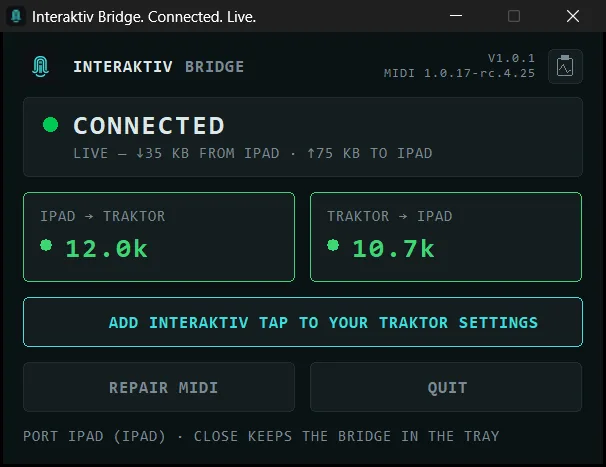
The bridge’s job is to be boring: one dot, and it only shows green when Traktor is actually answering — not merely when a cable is in. Its window says three things in three sizes: the big text names what is in the way, the line under it states the fact, and the line at the bottom is the fix, with the button that does it — red for a fault, grey while a button works or for a note. Red is earned: a healthy rig never shows it, and day to day you will only ever see the first table. The rest are grouped by what is in the way, from what can come up in normal use to what you set up once.
#Day to day
These are the only states a working rig ever shows. Each names the one thing that is not there yet, and it clears by itself the moment it is. One of them, WAITING FOR MIDI, has rarer second lines — a port Traktor is not using — and those sit below, under Traktor.
| Dot | The window says | What to do |
|---|---|---|
| Green | CONNECTEDlive — ↓12 KB from iPad · ↑3 KB to iPadconnected — MIDI both ways | Play. The two tiles count messages each way while they move. |
| Gray | WAITING FOR IPADwaiting for iPad (USB cable) | Plug the iPad in with a cable that syncs (not a charge-only one). |
| Amber | WAITING FOR INTERAKTIV TAPApple device on USB — open Interaktiv Tap2 Apple devices on USB — open Interaktiv Tapversion mismatch — update Tap or Bridge | Open Interaktiv Tap on the iPad — on the one you want to play, if two are plugged in. A version mismatch: update Tap or the bridge, whichever is older. |
| Amber | WAITING FOR MIDITraktor isn’t running | Start Traktor. |
The rest is in the manual, one state at a time with what to do about it — when the bridge is waiting on Traktor, on Apple Devices, or on Windows’ MIDI service. A healthy rig never shows any of them.
The bottom line has a few more things to say that are not states. While a button works it reports progress — DOWNLOADING WINDOWS MIDI SERVICES with the megabytes so far, INSTALLING · APPROVE THE WINDOWS PROMPT, REPAIRING WINDOWS MIDI — and if the install or the repair fails, it says so in red, with the reason. When nothing is wrong it carries a note instead: that a newer Windows MIDI runtime is available behind the arrow button in the header, that the app on the iPad is older than the bridge, or simply PORT IPAD (IPAD) · CLOSE KEEPS THE BRIDGE IN THE TRAY.
#Honest limits
- The iPad end is Interaktiv Tap, and only Tap. Another iPad app cannot send through the bridge, however well it speaks MIDI. The port it makes on the Windows side is ordinary and anything can listen to it — the cable end is the half that is ours.
- One iPad at a time. A second Apple device on USB is counted in the window, not merged; the first one running Interaktiv Tap wins. One Tap session at a time, too.
- Restart Traktor after a Repair, and once if Traktor was already open the first time the bridge set up its port on this PC — on a fresh PC, that is the moment INSTALL MIDI SERVICES finishes. Otherwise only when the window says
Traktor lost its iPad (iPad) port: the bridge quit or updated while Traktor held the port, or Windows restarted its MIDI service. Never for sleep, and never for unplugging the iPad. - A charge-only cable reads as no iPad. Use the cable that syncs.
- A hub works, or a controller’s own USB port — whether the iPad also charges through one depends on the hub and the cable. Untested, so unclaimed: two Windows users signed in at once (one bridge per session is not something we have made work).
#FAQ
#Is it free?
Yes. The bridge is free and stays free — it exists so Interaktiv Tap works on Windows. No account, no subscription, no in-app anything.
#Do I need Wi‑Fi, or the internet?
Neither. MIDI travels over the USB cable, and so does the settings page when you set the app up — the bridge opens it in your browser straight off the iPad, over the same cable. Nothing to join, nothing to pair. The only download the bridge ever makes is Microsoft’s MIDI runtime, when you press the button — and again only if a later bridge asks you to update it.
#Is this IDAM for Windows?
Close, with honest limits. On a Mac the single-cable iPad connection is built in — Apple’s Audio MIDI Setup, the feature called Inter-Device Audio & MIDI (IDAM), carries audio and MIDI the moment you press Enable. Windows has no IDAM. The bridge fills the MIDI half of that gap for Interaktiv Tap: one cable, no network, and the iPad shows up as a normal MIDI port. The audio half it doesn’t attempt — IDAM’s audio is Apple’s own and exists only on macOS, so no Windows tool, ours included, brings the iPad’s sound over the cable.
#Which Windows does it need?
An Intel or AMD PC with Windows 11 24H2 or newer; the Store will not offer it to anything older. Below 24H2 the fix is free via Windows Update; Windows 10 has no path, because the MIDI service the bridge relies on doesn’t exist there.
#Does it phone home?
No telemetry, no account, and no update check of its own — updates come through the Store, and even the “update available” line for Microsoft’s runtime is a comparison made on your PC, with no connection opened. Everything the bridge talks to lives on your own machine: Apple’s device service, Windows MIDI Services, and the iPad on the cable. Two things reach out, and only when you click: installing Windows MIDI Services downloads Microsoft’s runtime (about 209 MB) from Microsoft’s own release page and checks its size and SHA-256 before running it, and Get Apple Devices opens the Store. Add Interaktiv Tap to your Traktor settings listens on your PC’s loopback address only, where nothing but your own browser can reach it. Copy diagnostics contains no serial numbers, no device IDs and no user name, and goes nowhere unless you paste it into an email.
#What does it change on my PC?
Three things, and only one of them happens without you. It declares its own MIDI port in Windows’ own MIDI configuration, every time it starts: it adds one entry and leaves every other entry alone, Microsoft’s included. Nothing asks for approval, because Windows already lets a signed-in user write that file, and it looks again at every start because an entry removed elsewhere would fail silently. That declaration is what puts the port in place before either program is running, so Traktor finds it whether or not the bridge is open. Before its first ever change it copies that file as it was into the same folder, with .interaktiv-backup on the end — that copy is the original from before the bridge ever ran, so putting it back by hand also drops anything declared since. The file is %ProgramData%\Microsoft\MIDI\WindowsMidiServices.midiconfig.json. The other two happen only when you press a button: installing Microsoft’s MIDI runtime, and REPAIR MIDI. Each says what it will change before it changes anything, and Windows asks for your approval.
#Windows asked for admin approval — from an unknown publisher.
That prompt is Repair MIDI, our own helper asking for admin rights to restore the Windows MIDI handoff. The Store signs the package it arrives in, not the helper inside, so Windows calls the publisher unknown. Say no and nothing changes — the window tells you so. Nothing else in the bridge elevates, ever.
#Traktor doesn’t see the iPad port.
Traktor reads its MIDI ports once, at start. Once the bridge has run on your PC, the iPad (iPad) port is there from the moment the Windows MIDI service starts — before the bridge, before Traktor — so on a normal day the order doesn’t matter. Three exceptions: the very first time you run the bridge, restart Traktor if it was already open; restart it after a Repair, which restarts the MIDI service; and restart it whenever the window says Traktor lost its iPad (iPad) port, which means Windows restarted that service on its own.
#Green, but one control does nothing.
Green is the whole of what the bridge knows: Traktor received its message and answered. A single dead control is a mapping or deck-assignment matter inside the app — the manual’s troubleshooting covers it. A Traktor that ignores all MIDI never shows green; that is the next question.
#The window says TRAKTOR NOT ANSWERING.
Traktor holds the port but isn’t answering the bridge. If the app on the iPad offers to update your Traktor settings, do that first — a mapping from before the bridge has no row for its heartbeat, and to the bridge that looks exactly like a wrong port. Then check Controller Manager: both In-Port and Out-Port must read iPad (iPad); a port set to None still holds the port and hears nothing. Then Traktor’s audio device (Preferences → Audio Setup): with a missing or invalid device Traktor ignores all MIDI without saying so, and the bridge cannot see that from outside. If all three are right, restart Traktor.
#What does Repair MIDI do?
Windows routes classic MIDI apps like Traktor to the new MIDI service through a registry handoff, and that handoff can be handed back to the old driver — by a Windows restart with older MIDI software installed, by an update, or by another MIDI installer. Repair writes the handoff again and restarts the service, which briefly stops MIDI for every app, so restart Traktor after. It writes two MIDI values and nothing else: it does not touch your audio device, your ASIO driver, or anything Traktor plays sound through. It is refused while Windows MIDI Services isn’t installed, because a handoff with no service behind it would break MIDI for everything.
#Can other apps use the iPad port?
Two halves, two answers. On the Windows side it is a normal MIDI port, so yes — anything that speaks MIDI can listen to it, and people do point other software at it. On the iPad side, no: the bridge carries Interaktiv Tap and nothing else, so another iPad app cannot send through it. What we build, test and support is Interaktiv Tap with Traktor.
#The cable gets kicked mid-set. What happens?
The dot goes gray the moment the cable leaves, within about a second, and the window says it is waiting for the iPad. Plugging it back in is the whole fix: about five seconds to green, measured on the rig, with Traktor untouched and no restart — the port Traktor holds belongs to the Windows MIDI service, and the bridge keeps the other side of it whether or not an iPad is attached. Nothing sticks on: no hanging notes. Whatever Traktor was holding when the cable left stays where it was until you touch it again, so a fader caught mid-move does not jump back — that is how MIDI works rather than anything the bridge decides. The unplug-and-replug instruction elsewhere on this page is for a different situation: an iPad that was already plugged in before the PC started, where Apple’s own process never saw it.
#What if the bridge crashes mid-set?
The iPad’s header shows NOT CONNECTED. Open Start → Interaktiv Bridge: the session resumes, and Traktor is untouched, because the port belongs to the Windows MIDI service, not to the bridge. It does not come back on its own — open it, or sign in again. If Traktor then lists no iPad port, restart Traktor. A crash writes a log line saying where, and Copy diagnostics carries that line, and a count of abrupt endings, to us.
#Can I close the lid, or lock the screen?
Lock the screen freely, and let the display sleep — the bridge holds the PC out of idle sleep while a session is live. Keep the lid open while you play: closing it is a power action that suspends the PC and stops MIDI until it wakes. The bridge recovers by itself when the PC does; the set does not.
#Does it run on ARM64 laptops?
No. Traktor does not support Windows on ARM, so neither does the bridge — it needs an Intel or AMD PC.
#How do I uninstall it?
Settings → Apps → Interaktiv Bridge → Uninstall, like any other app. Windows removes the app and its startup entry. Two things stay: Microsoft’s runtime, listed as “Windows MIDI Services Runtime and Tools”, which other MIDI software may be using — remove that entry too if you want it gone; and the iPad (iPad) port, which the Windows MIDI service keeps listing, harmlessly, and which a reinstall simply uses again. Apple Devices and your Traktor settings are never touched.
#Something’s wrong — how do I send you the details?
Click Copy diagnostics — the small square button by the version numbers, or the tray menu — and paste it into an email to [email protected]. It carries the bridge and Windows versions, the runtime, the handoff state, who holds the port, which Apple app answers for the iPad and how many Apple devices Windows sees, the counters and the tail of the log — and nothing that identifies you or your iPad.
#From here
The bridge is one half of the story — the instrument is Interaktiv Tap, and the full manual lives in Support & manual, with the Windows setup walkthrough and this window’s states in it. Something this page doesn’t answer? Write to us — with Copy diagnostics pasted in, if the bridge is involved.

 Scan with your iPad
See what Interaktiv Tap does →
Scan with your iPad
See what Interaktiv Tap does →